


You're usually here for the same reason most Sitecore and SharePoint developers get here. Your local instance loads, the browser throws a Not Secure warning, authentication callbacks behave oddly, embedded services refuse to talk to each other, and features that work fine behind real TLS in higher environments suddenly become unreliable on your machine.
That's not cosmetic. In a modern DXP stack, HTTPS is part of the working baseline. Sitecore integrations, headless rendering hosts, local APIs, identity flows, and SharePoint-connected services all behave better when your workstation mirrors the trust model of a real environment. If you work with personalization, search, content delivery, AI-assisted experiences, or service-to-service calls, local HTTP quickly becomes the wrong test bed.
A self-signed certificate is the fastest way to restore that baseline for local development. It gives your dev server a certificate it can present during TLS negotiation, and once you trust that certificate locally, the browser and platform stop treating your environment like an unsafe exception. For teams building experience-led platforms, that matters because a digital experience platform is never just one website. It's usually a collection of services, rendering layers, APIs, identity components, and content systems that expect secure communication.
The practical part is straightforward. The part that trips people up is everything around it: which method to use, how trust works, how to make it work on Windows and IIS, and when a self-signed cert stops being the right tool.
Table of Contents
Introduction Why Your Local DXP Needs HTTPS
A local Sitecore or SharePoint build without HTTPS feels usable right up to the point where it doesn't. Pages might render, but secure cookies, callback URLs, admin tools, embedded apps, and browser security rules start pushing back. That friction gets worse as your solution grows beyond a single web root.
For DXP teams, local HTTPS isn't polish. It's environment fidelity. If your production architecture depends on trusted TLS between services, then your local environment needs a version of that same behavior or you end up debugging the wrong problems.
Where They Fit in Real DXP Work
Sitecore projects often combine CM, CD-style local testing patterns, headless front ends, search integrations, identity providers, and API endpoints. SharePoint environments add their own IIS bindings, certificate stores, and Windows trust expectations. In both cases, the local machine becomes a miniature enterprise platform.
That's why developers keep searching for how to create a self signed SSL certificate. They don't just want encryption. They want a local setup that behaves like the systems they deploy.
Secure local development removes false negatives. If a feature fails, you want it to fail because of code or configuration, not because the browser rejected an insecure context.
A self-signed certificate gives your local server a certificate to present. Once you trust it on your machine, your browser and the platform can treat the connection as expected for local work. That makes Sitecore admin areas, local SharePoint web apps, and API-backed front ends much easier to validate with confidence.
What They Solve and What They Don't
A self-signed certificate solves one immediate problem well. It gives you a quick certificate for a local hostname and lets you test HTTPS on your own machine or inside an internal lab.
It doesn't solve trust at scale by itself. If another developer, a test VM, or a separate service needs to trust that certificate, you have to establish that trust manually. That's why local convenience and team-wide maintainability are two different conversations.
For individual developers, self-signed certificates are often enough. For shared enterprise workflows, they're usually the starting point, not the finish line.
The Role of Self-Signed Certificates in DXP Development
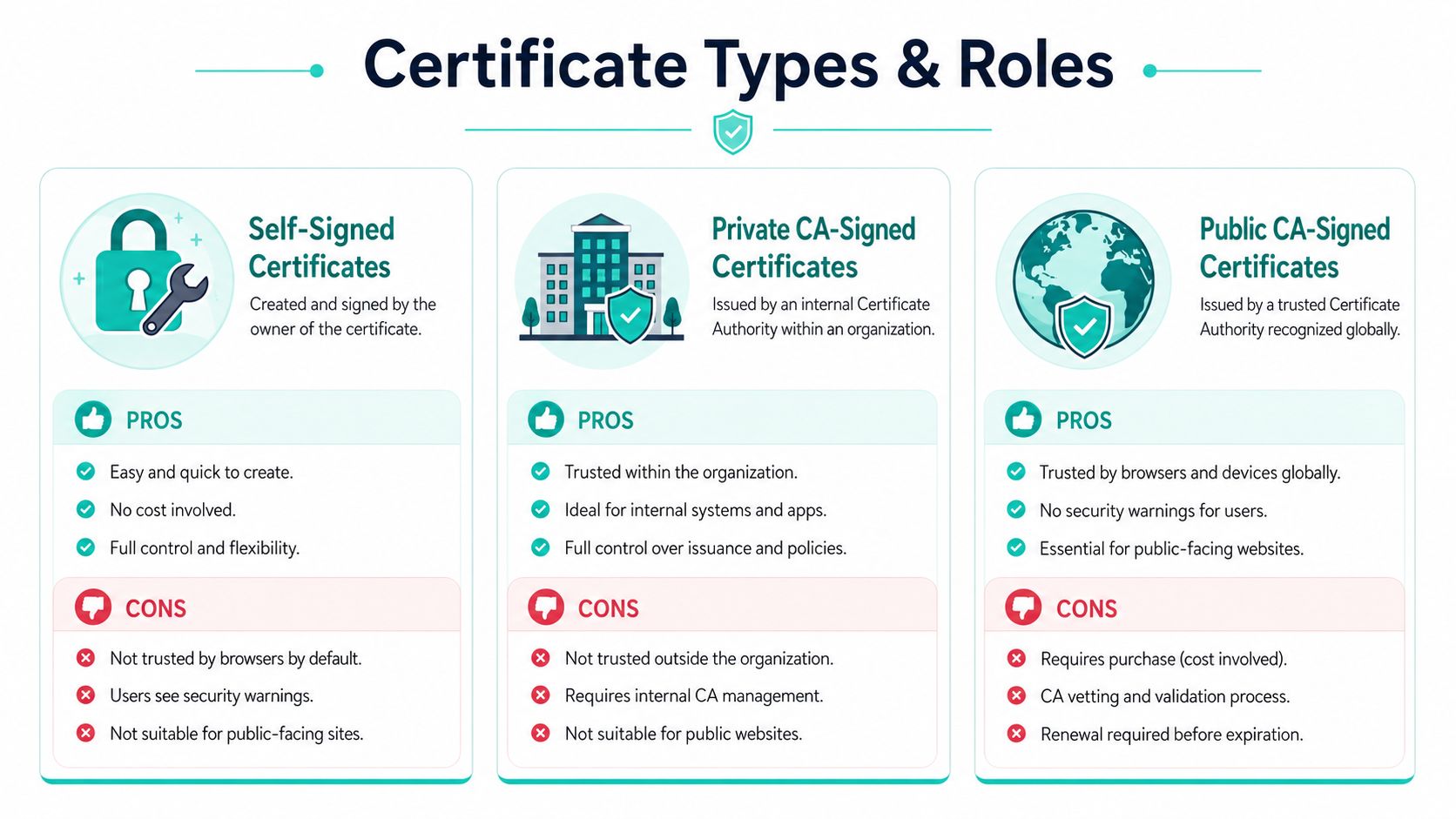
A self-signed certificate is signed by its own private key rather than by a public certificate authority. That makes it fast to create and useful for local development, but it also means clients won't trust it automatically. You have to add that trust yourself.
Where They Fit in Real DXP Work
In enterprise DXP delivery, I treat certificate types as environment-specific tools.
- Self-signed certificates work well for one developer machine, isolated demos, and short-lived local Sitecore or SharePoint setups.
- Private CA-signed certificates fit internal platforms where multiple systems need to trust the same issuing root.
- Public CA-signed certificates belong on anything user-facing, externally reachable, or integrated with broad public trust expectations.
A common, standards-based pattern is to generate a 2048-bit RSA private key, create a CSR, and then sign that CSR with the same key, with enterprise documentation commonly defaulting validity to 365 days using OpenSSL commands such as openssl x509 -req ... -days 365 (Acquia documentation). That matters operationally because the certificate is not issued by a public CA, so every client or server that uses it has to trust it manually.
That's the key trade-off. Self-signed certificates are easy to create, but they shift trust management onto your team.
What They Solve and What They Don't
For local Sitecore development, a self-signed certificate is often enough to get IIS bindings, secure cookies, and local service calls working cleanly. For SharePoint labs and Windows-based integration testing, it's also a practical baseline because it aligns with IIS and the local certificate store.
They stop working well when teams scale usage without scaling trust.
Practical rule: If more than one machine or service needs to trust the certificate regularly, stop thinking in terms of isolated self-signed leaf certificates and start thinking in terms of a private trust model.
If you need a refresher on chain of trust, root stores, and issuing authorities, this guide to understanding PKI concepts is useful because it connects the certificate file you generate to the trust decision your browser and operating system make.
Public production sites are a separate category. Browsers and external clients expect certificates anchored in a trusted public CA. A standalone self-signed certificate isn't the right fit there, and trying to force it usually creates warnings, exceptions, and avoidable operational debt.
Generating Certificates with OpenSSL and mkcert
For local development, I use two paths depending on the team and the machine. OpenSSL is the universal option and gives you full control. mkcert is the developer-friendly option when you want local HTTPS working quickly with fewer moving parts.

OpenSSL for Full Control
A practical workflow is to generate a 2048-bit RSA key and a 365-day X.509 self-signed certificate with OpenSSL using openssl req -x509 -nodes -days 365 -newkey rsa:2048 -keyout ... -out ...; after creation, you must reference the certificate and key in the server's SSL virtual host configuration and reload the web server for the changes to take effect (Compute Canada guidance).
For local Sitecore or container-adjacent setups, that usually starts with a command like this:
openssl req -x509 -nodes -days 365 -newkey rsa:2048 -keyout local-dev.key -out local-dev.crt
What each part does:
req -x509creates a self-signed certificate instead of only producing a CSR.-nodesleaves the private key unencrypted so services can start without prompting for a passphrase.-days 365sets the certificate lifetime.-newkey rsa:2048creates a new RSA key and certificate in one step.-keyoutand-outdefine where the private key and certificate are written.
If you prefer the classic split workflow, use one command to create the key, one to create the CSR, and one to sign it. That model is useful when your team wants more explicit handling of certificate requests, especially in enterprise Windows environments.
For developers working with local containers, rendering hosts, and build scripts, there's often a close relationship between how the app is packaged and how the cert is mounted or bound. This is one place where understanding Docker Compose vs Dockerfile helps because certificate files are frequently injected through orchestration rather than baked into images.
mkcert for Fast Local Trust
If the goal is to get HTTPS working on a workstation with the least friction, mkcert is usually the better choice. It creates a local CA on your machine, installs it into the local trust store, and then issues certificates from that trusted root for development hostnames.
That changes the experience completely. Instead of generating a standalone cert and then manually wrestling with trust stores, you generate a cert that your machine already trusts because mkcert installed its own local root CA first.
Typical mkcert usage looks like this:
- Install
mkcert - Run
mkcert -install - Generate a certificate for your local hostname with
mkcert your-local-hostname
That's especially useful for Sitecore headless builds, XM Cloud local companion services, and SharePoint-connected helper apps where developers need clean browser trust without repeating manual certificate imports every time they rotate a cert.
A short demo can help if you want to see the mechanics visually before wiring it into your environment:
If OpenSSL is the tool you use when you want to understand every layer, mkcert is the tool you use when you want local trust to stop slowing the team down.
Comparison of Certificate Generation Methods
| Method | Best For | Trust Store Management | Learning Curve |
|---|---|---|---|
| OpenSSL | Custom setups, IIS bindings, scripted workflows, explicit certificate handling | Manual | Higher |
| mkcert | Local developer machines, browser trust, quick setup | Mostly automated on the local machine | Lower |
| IIS self-signed workflow | Windows-first SharePoint and Sitecore on IIS | Managed through Windows certificate stores | Moderate |
OpenSSL teaches you what the certificate is doing. mkcert removes a lot of repetitive workstation setup. In real projects, both belong in the toolbox.
Creating Certificates on Windows for IIS and SharePoint
If you're building on Windows, especially for IIS, SharePoint, or Sitecore XP-style local environments, the graphical path is often cleaner than staying in the terminal. It maps well to how the certificate will be bound and managed later.
Using IIS Manager
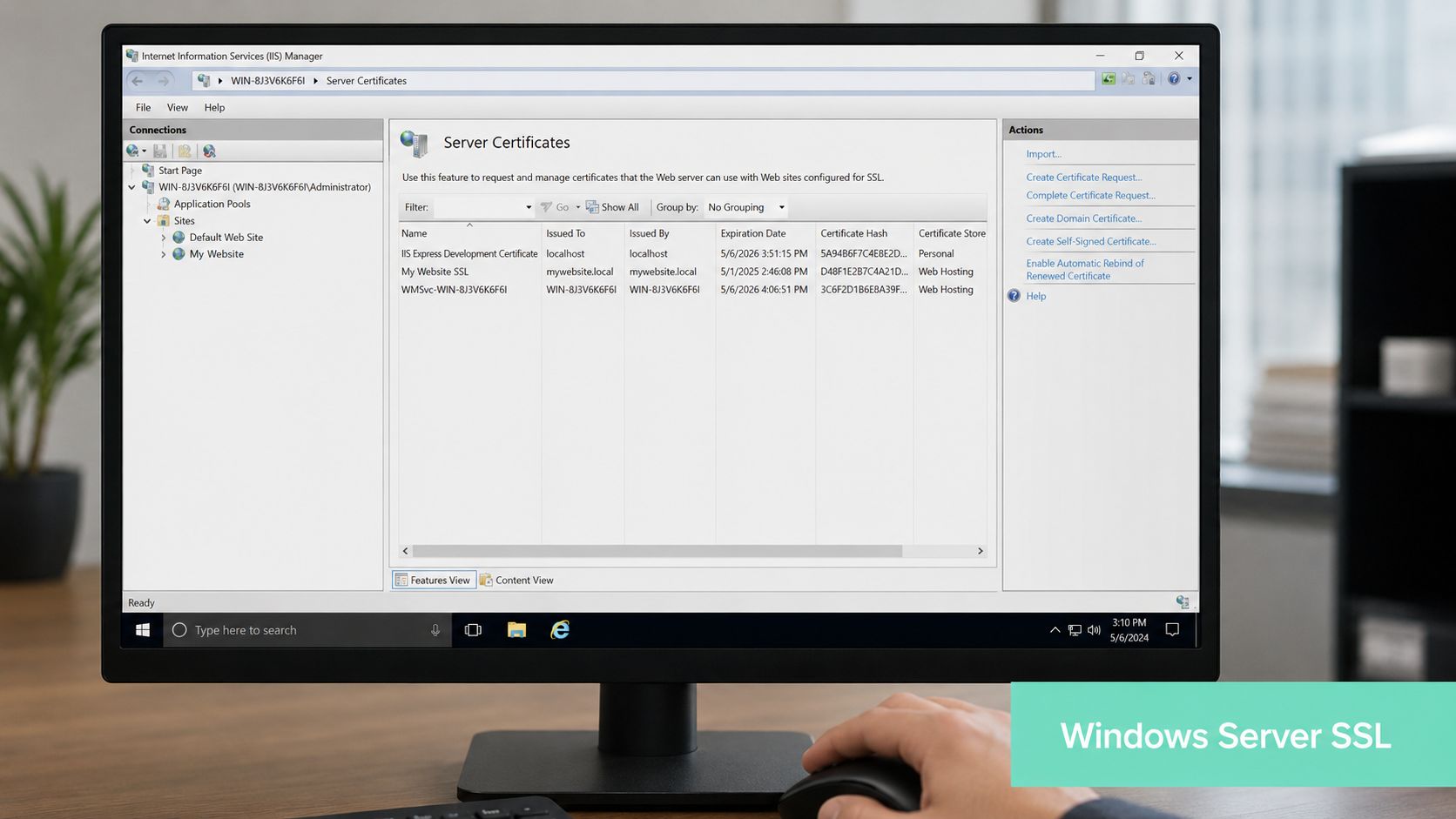
In IIS Manager, open the server node and select Server Certificates. From there, choose the option to create a self-signed certificate, give it a clear friendly name, and store it in the Personal certificate store unless your environment requires a different location.
After the certificate exists, open the target site in IIS, choose Bindings, add or edit the https binding, and assign the certificate. This is the part many developers skip mentally. Creating the certificate alone does nothing until the site binding references it.
For local SharePoint web applications and Sitecore instances hosted in IIS, that binding step is what brings the certificate into the request path. Once it's attached to the site, the browser can see it during the TLS handshake.
A few practical habits help here:
- Use clear names: Name certificates by environment and site purpose so you can identify them later in the Windows store.
- Match the hostname: The certificate has to line up with the hostname your browser uses.
- Keep local intent obvious: Don't mix local dev certs with reusable internal certs unless you're deliberately managing them as a team asset.
Exporting for Reuse and Binding
Microsoft's documentation puts real emphasis on lifecycle management beyond generation, including exportable keys, password-protected PFX files, and certificate thumbprints for later use in application configurations and bindings (Microsoft documentation).
That shows up in day-to-day Windows work more than people expect. You might need the PFX for:
- Moving a cert between machines
- Binding a certificate in another Windows component
- Preserving the private key for app configuration
- Referencing the thumbprint in PowerShell or deployment automation
If you automate local environment setup, capture those post-creation steps in scripts rather than relying on memory. A lot of Windows teams fold cert import, IIS binding, and app pool configuration into repeatable setup tasks, which is one reason structured PowerShell scripting patterns are so useful in SharePoint and Sitecore delivery.
A certificate you can't export, identify, or rebind cleanly becomes a support problem later, even in development.
For Windows-first teams, the GUI route isn't a shortcut. It's often the most maintainable path because it aligns with how IIS, the certificate store, and local administrative workflows behave.
Installing and Trusting Your Self-Signed Certificate
Creating the certificate is the easy part. Trusting it is what removes the warning banner and gives you a usable local HTTPS setup.
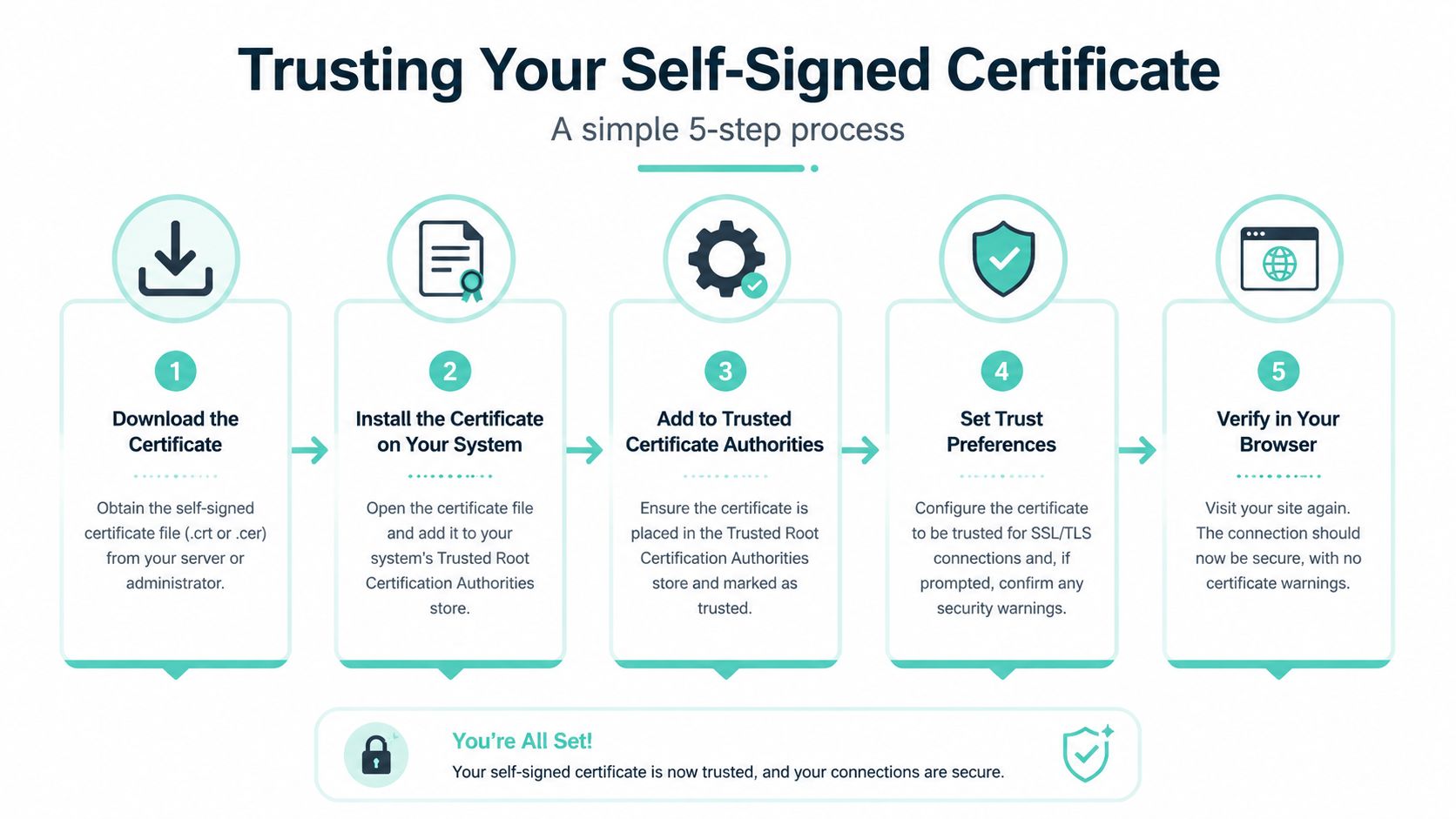
That trust step is necessary because a self-signed certificate doesn't chain back to a public authority your machine already knows. Your operating system and browser need an explicit instruction that says, in effect, “this certificate or this issuing root is allowed in my local environment.”
Trusting on Windows and macOS
On Windows, the usual path is to open the certificate in the Microsoft Management Console, then import it into the Trusted Root Certification Authorities store if you're trusting the issuing root, or into the appropriate store for the exact certificate you want the machine to trust. If you used IIS-generated certificates, much of the work stays inside the Windows certificate ecosystem, which is one reason that workflow feels consistent for SharePoint teams.
On macOS, open Keychain Access, import the certificate, place it in the correct keychain, and set it to trust for SSL use. If you're using mkcert, a lot of this is handled during installation of the local root, but it's still worth checking the resulting trust state when a browser behaves differently than expected.
The quick mental model is simple:
- Create or import the certificate
- Place it in a trust-relevant store
- Mark it trusted if the OS requires that step
- Restart the browser if needed
- Test the exact hostname the certificate was created for
Browser-Specific Checks
Most Chromium-based browsers lean on the operating system trust store. Firefox can behave differently depending on configuration and version, so if a cert works in one browser and fails in another, check whether that browser is using its own certificate store.
When local trust still fails, the issue is usually one of these:
- Wrong hostname: The certificate doesn't match the host you typed.
- Wrong store: You imported it, but not into a store the browser trusts.
- Wrong object trusted: You trusted the leaf cert when the workflow expects trust in a root CA, or the reverse.
- Old browser state: The browser cached an earlier failure or needs a restart.
- Wrong binding: IIS or your web server is still serving a different certificate.
Trust problems are rarely cryptography problems on local machines. They're usually store, binding, or hostname problems.
For Sitecore and SharePoint developers, this is the step that turns “I created a certificate” into “my environment works.” Without it, the certificate exists but the platform still behaves like it's unsecured.
Security Best Practices and Certificate Lifecycle
Self-signed certificates are useful. They're also easy to misuse. The safest way to think about them is as a development tool with a defined boundary, not as a general-purpose production answer.
For local work, current guidance trends favor stronger defaults such as RSA 2048 or 4096-bit keys and SHA-256, and they put more attention on lifecycle concerns like key protection, rotation, export handling, and migration to managed trust models rather than treating generation as the whole task. That broader lifecycle view is reflected in Microsoft's handling of keys, PFX files, and thumbprints, and in enterprise workflows that separate root, CSR, and signed leaf handling instead of relying only on one-step leaf generation.
What Works for Local Dev
For a single developer machine or a short-lived project environment, keep things disciplined:
- Protect the private key: Don't drop it into shared folders, repos, or team chat.
- Use short, intentional lifetimes: Local certs should be easy to replace.
- Bind only what you need: Don't spread one ad hoc cert across unrelated local services.
- Document the hostname relationship: If the team uses a specific local naming pattern, make it explicit.
If your organization is trying to ensure small business compliance and security, the same operational principle applies at a larger scale. Temporary shortcuts in trust and key handling often survive longer than intended.
A mature team also plans the exit from self-signed leaf certs. That's especially true once local development gives way to integration, shared staging, or internal QA platforms.
When to Move to a Private CA
For longer-lived internal deployments, a common expert pattern is to create a private root CA and issue leaf certificates from it. One documented implementation uses openssl req -x509 -new -nodes -key rootCA.key -sha512 -days 3650 -out rootCA.pem, allowing multiple internal services to trust the same root and reducing operational friction (Teramind guidance).
That model fits enterprise DXP work much better than scattering standalone self-signed leaf certificates across machines and environments. It gives you one trust anchor for multiple internal services, cleaner rotations, and a path toward automation.
You should also keep security practice connected to the rest of your platform work. Certificate hygiene belongs with broader website security best practices, not as a separate one-off admin task.
The practical position is simple. Use a self-signed certificate for local development when it's the fastest correct tool. Move to a private CA when trust needs to scale. Use publicly trusted certificates for anything public-facing.
If you're planning a Sitecore, Sitecore AI, or SharePoint environment and want the delivery team to get the infrastructure details right from local development through production readiness, talk to Kogifi.