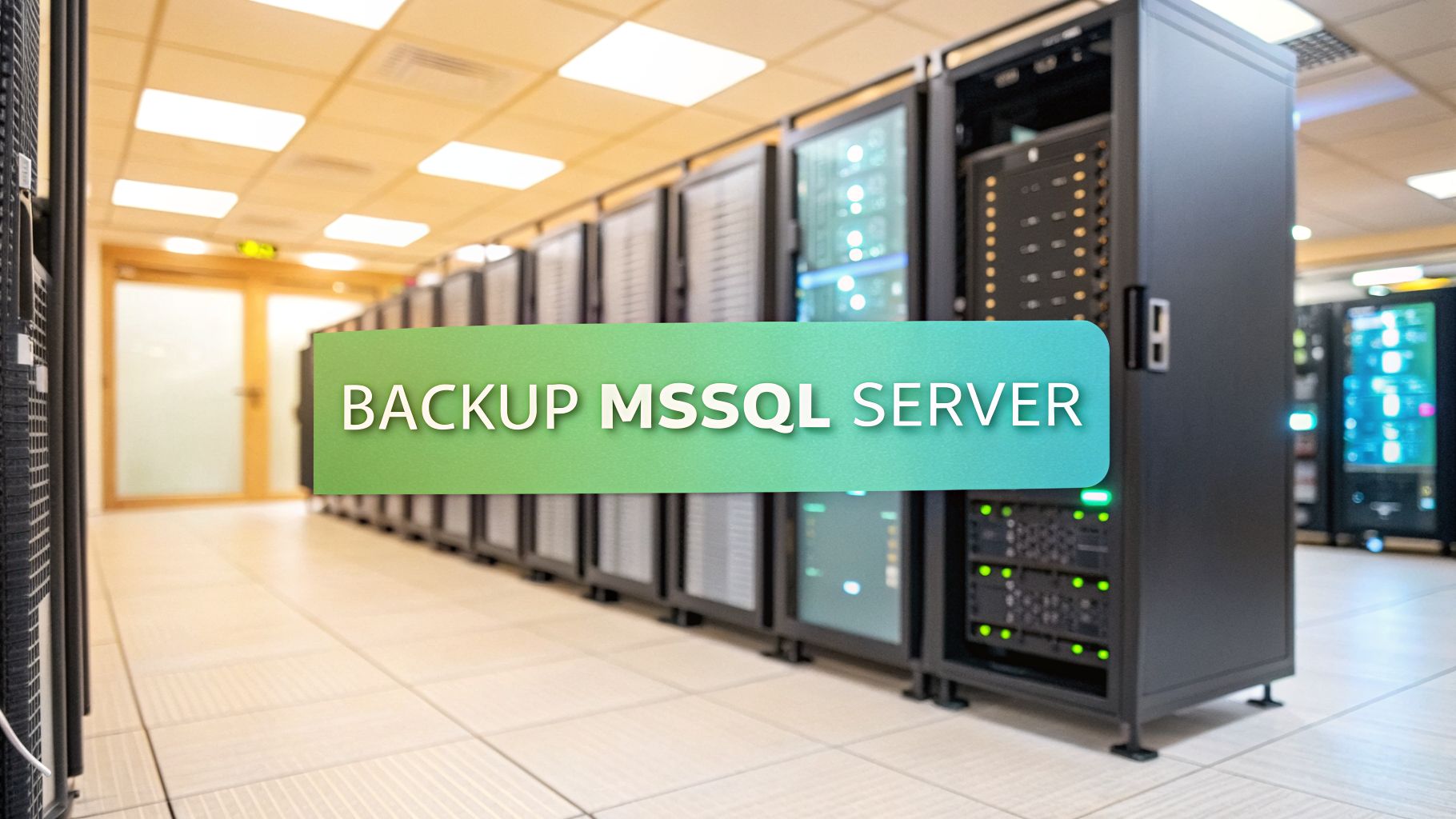



When it comes to your backup mssql server strategy, simply running a command isn't enough. It's about building a strategic safety net for your most critical business platforms, ensuring you can recover data quickly and keep the business running no matter what.
This all comes down to a smart combination of full, differential, and transaction log backups.
Building Your MSSQL Server Backup Foundation
Before you write a single script, you need a rock-solid backup strategy. This isn't just a technical exercise; it's the bedrock of business continuity for mission-critical platforms like Sitecore and SharePoint. The best strategies start with business requirements, not technical tools.
Your entire approach will be guided by two metrics:
- Recovery Point Objective (RPO): This is the maximum amount of data loss your business can tolerate, measured in time. For a Sitecore XP environment, an RPO of 15 minutes is common, meaning you can't afford to lose more than 15 minutes of transactions.
- Recovery Time Objective (RTO): This is the maximum downtime allowed for restoring the system after a failure. An RTO of one hour means the Sitecore or SharePoint instance absolutely must be back online within 60 minutes.
The Three Pillars of SQL Server Backups
To hit your RPO and RTO targets, you'll need to master a mix of three backup types. Each one plays a unique role in building a solid recovery chain.
A Full Backup is exactly what it sounds like: a complete copy of the database and parts of the transaction log. Think of it as the foundation for all other backups. While they are comprehensive, they're also large and slow, which makes them impractical to run frequently on large databases.
Next, a Differential Backup captures only the data that has changed since the last full backup. These are much faster and smaller than fulls. For a restore, you just need the last full backup and the latest differential, which dramatically cuts down recovery time compared to replaying a ton of logs.
Finally, a Transaction Log Backup captures all log records generated since the previous log backup. This is your key to point-in-time recovery and achieving a very low RPO. For high-transaction systems, you might even run these every few minutes.
A common mistake is thinking backups are only for catastrophic failures. In our experience with complex Sitecore implementations, they're more often used to fix smaller problems, like a developer accidentally deleting data or a bad code deployment. A good strategy with frequent log backups can be an absolute lifesaver in those moments.
For a deeper dive, a well-rounded ultimate business backup guide can help you apply these principles across your entire organization. The core ideas of data protection are universal.
Mapping Backups to Business Goals
This is where the strategy really comes together—connecting these technical options to your business needs. A tight RTO might push you toward using differential backups to speed up restores, while a strict RPO for a platform like Sitecore CDP demands frequent transaction log backups. Getting this right is fundamental, especially when managing complex environments like those we handle with our specialized Sitecore implementations and support.
To help you decide on the right mix, this table breaks down how each backup type aligns with your recovery goals.
Mapping Backup Types to Your Business Recovery Goals
| Backup Type | Backup Size | Backup Speed | Restore Complexity | Ideal RPO |
|---|---|---|---|---|
| Full | Largest | Slowest | Low (Single file) | 24 hours |
| Differential | Medium | Medium | Medium (2 files) | 1-4 hours |
| Transaction Log | Smallest | Fastest | High (Multiple files) | < 15 minutes |
As you can see, there's a clear trade-off. Full backups are simple but slow, while transaction logs offer granular recovery at the cost of a more complex restore process. A smart strategy uses all three to balance speed, storage, and recovery needs.
All the theory in the world won't save your data. True protection comes from practice. It’s time to roll up our sleeves and create a backup mssql server instance using the two most common tools in any DBA's kit: SQL Server Management Studio (SSMS) and Transact-SQL (T-SQL).
Let's ground this in a real-world scenario we handle all the time at Kogifi: prepping a Sitecore XP environment for a major version update. This is a high-stakes job where having a perfect, pre-update backup isn't just a good idea—it's absolutely mandatory.
Creating a Full Backup With SSMS
SQL Server Management Studio offers a friendly graphical interface that makes backups easy, even if you’re not a T-SQL wizard. It’s perfect for quick, one-off backups or just getting a feel for all the options before you start scripting.
First, connect to your SQL Server instance in SSMS. Find the database you need to back up (like Sitecore_Core), right-click on it, and go to Tasks > Back Up.... This will open the main backup window.
The "Back Up Database" screen is your command center for configuring the backup.
From here, you can pick the database, make sure the backup type is set to Full, and choose where the backup file will be saved. Don't forget to check the Media Options tab—that's where you'll find important settings like compression and verification.
Key Options in the SSMS Wizard
While the default settings often work, a few options are critical for enterprise-level work.
- Copy-Only Backup: This creates a full backup without messing up your existing backup chain. It’s the perfect tool for grabbing a special-purpose backup—like right before a big Sitecore deployment—without affecting your scheduled differential backups.
- Backup compression: You'll find this under Media Options, and you should almost always have it turned on. The storage savings and reduced I/O easily justify the tiny bit of extra CPU it uses on modern servers.
- Verify backup when finished: This runs a quick
RESTORE VERIFYONLYcheck to make sure the backup file isn't corrupt and can actually be read. It’s a simple sanity check that provides a welcome layer of confidence.
Choosing the right destination is more than just picking a folder. As a firm rule, backups should never be stored on the same physical drive as your database files. A single drive failure would wipe out both your live data and your only recovery path—a completely avoidable disaster.
Production-Ready Backups With T-SQL
When it comes to automation and consistency, T-SQL is the gold standard. It gives you pinpoint control and lets you embed backup commands into larger, more complex scripts. For anyone serious about automation, it's also worth learning how to create powerful PowerShell scripts to run these T-SQL commands across multiple servers.
Here are the go-to commands for full, differential, and transaction log backups, written for a real production environment.
Full Backup Example:
This script creates a compressed, verified full backup of the Sitecore_Web database. I like to include the database name and a timestamp in the file name to keep things organized.
BACKUP DATABASE [Sitecore_Web]TO DISK = N'D:\Backups\Sitecore_Web_FULL_20240915_2200.bak'WITHNAME = N'Sitecore_Web - Full Database Backup',DESCRIPTION = N'Full backup of Sitecore_Web before platform upgrade.',COMPRESSION,CHECKSUM,STATS = 10;Differential Backup Example:
A differential backup is much quicker because it only saves changes made since the last full backup. Just add the DIFFERENTIAL keyword.
BACKUP DATABASE [Sitecore_Web]TO DISK = N'D:\Backups\Sitecore_Web_DIFF_20240916_2200.bak'WITHDIFFERENTIAL,NAME = N'Sitecore_Web - Differential Database Backup',COMPRESSION,CHECKSUM;Transaction Log Backup Example:
Finally, transaction log backups are the small, frequent snapshots that are absolutely essential for point-in-time recovery.
BACKUP LOG [Sitecore_Web]TO DISK = N'D:\Backups\Sitecore_Web_LOG_20240916_2215.trn'WITHNAME = N'Sitecore_Web - Transaction Log Backup',COMPRESSION;With these T-SQL scripts as your starting point, you can build out a solid, automated workflow. Getting hands-on, whether through SSMS or T-SQL, is the first real step toward mastering your backup mssql server strategy and making sure your critical platforms are always safe.
Automating Your Backup MSSQL Server Workflow
Relying on manual backups is a recipe for disaster. We've seen it happen. Especially with complex platforms like Sitecore or SharePoint, where a single environment can have dozens of interconnected databases, one forgotten backup before a deployment can lead to catastrophic data loss. Automation isn't just a nice-to-have; it's the only way to turn your backup process from a risky manual chore into a reliable, hands-off system.
The built-in workhorse for this is the SQL Server Agent. It’s the scheduler that lets you run T-SQL scripts and other jobs on a recurring basis. Using the Agent is how you move beyond a simplistic "full backup every night" approach and build a smart, tiered strategy that actually meets your recovery point objectives (RPO).
Building an Intelligent Backup Schedule
A solid automated strategy isn’t about just one backup type; it’s about a combination, each running on a schedule that balances resource use with your data protection needs. For a typical Sitecore XM/XP installation, a battle-tested schedule often looks something like this:
- Weekly Full Backups: A complete backup of all databases (core, master, web, experience forms, xDB, etc.) kicks off every Sunday at 2:00 AM. This becomes the solid foundation for the entire week's recovery chain.
- Daily Differential Backups: A differential backup runs every night at 10:00 PM, capturing all changes made since the last full backup. This keeps the daily backup window short and sweet while ensuring you can restore to the end of any given day.
- Frequent Log Backups: For critical databases like the master, core, and xDB Collection shards, transaction log backups run every 15 minutes during business hours. This is what enables precise point-in-time recovery and saves you from losing more than a few minutes of work.
This visual breaks down how these T-SQL backup types work together in a sequence.
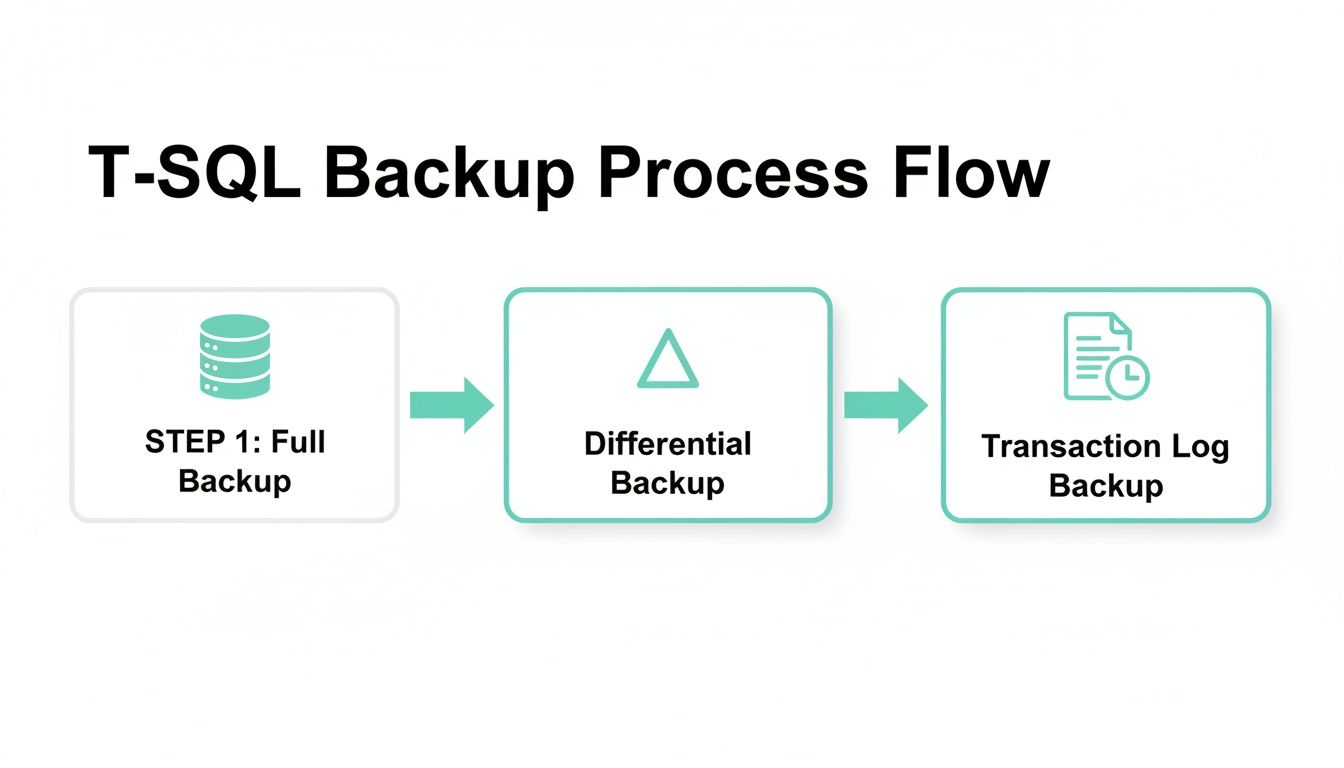
As you can see, the full backup is your starting point. Differentials then capture the changes since that full backup, and the logs handle all the transactions in between, giving you that granular recovery capability.
Creating a job in SQL Server Agent is pretty straightforward. You define the steps (your T-SQL scripts), set the schedule for each one, and—most importantly—configure notifications. An automated system is only useful if you know when it breaks, so make sure you set up email alerts to notify your team if a job ever fails.
Scripting Your Workflow with PowerShell
For teams that have adopted a DevOps or Infrastructure as Code (IaC) mindset, PowerShell opens up a whole new level of automation and flexibility. Instead of clicking through a GUI to configure jobs, you can script the entire backup workflow. This is a game-changer, especially when you're managing sprawling Sitecore portfolios or large SharePoint farms.
Using the SqlServer PowerShell module, you can write scripts that connect to an instance, get a list of all user databases, and then loop through them to perform backups. It's incredibly powerful.
This approach gives you a few major advantages:
- Consistency: Every server gets backed up using the exact same logic. No more "whoops, I forgot a database" moments. Human error is practically eliminated.
- Integration: You can plug these PowerShell scripts directly into your CI/CD pipelines. Imagine a script that automatically triggers a
COPY_ONLYbackup of all relevant Sitecore databases right before a new feature goes live. - Scalability: When a new Sitecore site with new databases comes online, your script can automatically find and include them in the backup routine. No manual intervention needed.
By treating your backup strategy as code, you create a system that is repeatable, version-controlled, and fits perfectly into modern IT operations. Whether you're managing one server or a globally distributed fleet, automating your SQL Server backups brings peace of mind. For organizations taking this to the next level in the cloud, a managed cloud service can handle the underlying infrastructure and automation for you.
Optimizing Backups for High-Transaction Platforms
When you're running a dynamic, high-traffic platform like Sitecore with its extensive product suite (Personalize, CDP, Search) or a bustling SharePoint intranet, your standard backup plan just isn't going to cut it. These systems are constantly changing, with a steady flow of content updates, user activity, and analytics data. A generic, once-a-day backup simply can't keep up.
To properly protect these mission-critical systems, you need to go beyond basic scheduling. This means fine-tuning your backup mssql server strategy to handle the unique demands of enterprise platforms, from backup frequency and compression to leveraging high-availability features.
Rethinking Transaction Log Backup Frequency
That old DBA rule of thumb about running transaction log backups every 15 minutes? It's completely outdated for modern digital experience platforms. In a high-volume Sitecore XP environment, 15 minutes can mean losing thousands of content updates, form submissions, or xDB interactions. That's a recovery scenario no business wants to face.
For today's mission-critical systems, the best practice is now transaction log backups every 1 to 5 minutes. This is a major shift, driven by a near-zero tolerance for data loss. As you can read more about this evolving standard for transaction log backups on Info2soft.com, your frequency should align directly with your Recovery Point Objective (RPO)—how much data you can afford to lose.
A shorter log backup interval gives you a much lower RPO and minimizes potential data loss. Yes, it creates more backup files, but each one is smaller, and the performance hit on modern servers is negligible. It's a small price for near-zero data loss.
The Trade-Offs of Compression and Encryption
As you map out your backup plan, you'll need to decide on compression and encryption. Both offer huge benefits, but they come with trade-offs you need to understand, especially in resource-heavy Sitecore or SharePoint environments.
Backup Compression
- Pro: Slashes backup file sizes, which saves a ton on storage costs. It also speeds up backup times by reducing I/O.
- Con: Adds a bit of CPU overhead. On modern multi-core servers, however, this impact is almost always minimal and well worth the benefits.
Backup Encryption
- Pro: Secures your backup files from unauthorized access. This is non-negotiable for meeting compliance standards like GDPR or HIPAA.
- Con: Puts a heavier load on the CPU than compression. It can also make restores more complex since you have to manage the certificates or keys.
For most Sitecore and SharePoint instances, our advice is to always enable backup compression. The storage and speed gains are massive, while the performance cost is tiny. Use encryption when you're dealing with sensitive data or need to meet regulatory requirements.
Backups in Always On Availability Groups
Always On Availability Groups (AGs) are the go-to solution for SQL Server high availability in enterprise Sitecore and SharePoint setups. A classic mistake we see is running backups on the primary replica, which puts a pointless load on your production server.
The smart move is to offload backups to a secondary replica. You can configure this right in the AG's backup preferences.
Set your backup preference to "Prefer Secondary" or "Secondary only." This tells SQL Server to run backups on a secondary replica, freeing up the primary to focus on serving your application workload. This is a must-do configuration for keeping your live site running at peak performance.
Just remember one key limitation: you can't run standard DIFFERENTIAL backups on secondary replicas. You'll need to adjust your strategy, usually by combining COPY_ONLY full backups with frequent transaction log backups from the secondary. This keeps the log chain intact while moving resource-heavy backup work off your primary server.
Navigating Upgrades and Performance Quirks
Moving to a new SQL Server version is a standard project, but it’s loaded with "gotchas" that can throw your entire backup mssql server strategy into chaos. We've been in the trenches with clients upgrading their Sitecore and SharePoint platforms, and trust us, a migration that looks smooth on the surface can hide some serious performance and storage headaches.
One of the most jarring problems we see is a sudden, massive spike in transaction log backup sizes. This isn't a small hiccup; it can blow through your storage and put your recovery objectives at risk. The usual suspect? A new feature that’s on by default.
The SQL Server 2022 Query Store Surprise
Upgrading to SQL Server 2022 is a perfect example. We’ve seen organizations migrating from older versions report a staggering 300% to 700% increase in transaction log backup sizes, even when the workload hasn’t changed. The main driver is the Query Store feature, which is automatically enabled on newly upgraded databases. You can dive into the technical nitty-gritty and see what others are saying in this Microsoft community discussion on the SQL Server 2022 upgrade impact.
While Query Store is a fantastic tool for performance tuning, it comes with a lot of logging overhead. For a "chatty" platform like Sitecore, which constantly runs small queries and updates, an untuned Query Store can cause log growth to explode.
We had a client whose log backups for their Sitecore marketing automation database ballooned from 50MB every 15 minutes to over 400MB. The culprit? An untuned Query Store was aggressively capturing every single execution. It’s a stark reminder to always check the default settings after a migration.
Proactive Tuning for Post-Migration Stability
The only way to avoid these performance surprises is to get ahead of them. An upgrade project isn't finished just because the database is back online. It’s done when you’ve validated and tuned its performance in the new environment. This is especially true for platforms like Sitecore XM Cloud or those leveraging Sitecore Personalize, where performance is directly tied to user experience.
Here are the post-migration checks we always run to keep backup performance from going off the rails:
- Review Query Store Settings: As soon as the upgrade is done, check the Query Store status on your critical Sitecore and SharePoint databases. If it’s on, dig into the configuration for
DATA_FLUSH_INTERVAL_SECONDSandQUERY_CAPTURE_MODE. Just switching the capture mode toAUTOinstead ofALLcan cut down the noise dramatically. - Establish New Baselines: Forget your old performance baselines; they're useless now. You need to capture fresh metrics for CPU, I/O, and backup sizes to figure out what "normal" looks like on the new version.
- Test Backup and Restore Operations: Run a full backup and restore cycle in a test environment. This not only confirms your backups are working but also ensures the restore time still fits within your Recovery Time Objective (RTO).
A well-executed upgrade must include a post-migration stabilization phase. This is a core part of the database migration best practices we use for our clients. You can learn more about these strategies in our guide on how to achieve a successful database migration. By anticipating these quirks, you can make sure an upgrade strengthens your data platform instead of introducing new risks.
Frequently Asked Questions About MSSQL Backups
When it comes to MSSQL backups, especially for mission-critical platforms like Sitecore and SharePoint, plenty of questions come up. Our team fields these concerns all the time, so we've put together clear, concise answers to help you sharpen your backup mssql server strategy.
How Often Should I Actually Test My Backups?
Backup testing is far more than just a box to check—it’s a mission-critical drill. For a dynamic platform like Sitecore, which might be using Sitecore Personalize to tailor user experiences in real-time, we recommend a full restore test at least quarterly in a pre-production environment. And no, running RESTORE VERIFYONLY doesn't count.
A true test means running a complete recovery. You need to restore the full backup, the latest differential, and every single log backup that followed. The goal is to time the entire process from beginning to end. This not only proves your backup files are clean and free of corruption but also confirms your team knows the recovery playbook by heart. It’s the only way to know for sure if you can meet your Recovery Time Objective (RTO) when a real crisis hits.
From our experience, this is where teams find the gaps in their process. They might realize their runbook is missing a step for a specific SharePoint service database, or that their recovery scripts point to old, outdated file paths. Regular testing turns a theoretical plan into a proven, reliable process.
Can I Backup a Database in an Always On Availability Group?
Yes, and you should absolutely be using your Availability Group (AG) to take the load off your primary server. A common mistake we see is running all backups on the primary replica. This adds a ton of unnecessary I/O and CPU strain to the very server that's handling live traffic for your Sitecore or SharePoint sites, which can easily slow down your application.
The established best practice is to set your AG's backup preference to ‘Prefer Secondary’. This simple change intelligently offloads those resource-heavy backup jobs to a secondary replica, freeing up your primary server to do its real job.
There is one important detail to keep in mind, though: standard differential backups aren't supported on secondary replicas. You'll need to adjust your strategy. A common and effective approach is to perform COPY_ONLY full backups and frequent transaction log backups from your secondary. This keeps your log sequence number (LSN) chain intact while still giving you all the performance benefits of offloading.
Is Backup Compression Worth the CPU Overhead?
For just about any modern server, the answer is a resounding yes. Worries about the CPU hit from backup compression are mostly a hangover from an era when processors were far less powerful. On today's multi-core systems, the CPU cost is usually minimal and is completely dwarfed by the massive benefits.
We enable native SQL Server backup compression by default on every Sitecore and SharePoint instance we manage. The advantages are just too good to pass up:
- Reduced Storage Costs: Backup files often shrink by 50-80%. This translates into huge savings on storage, whether you're on-prem or in the cloud.
- Faster Backup and Restore Times: Smaller files mean less data to write to disk and less to read back. This cuts down I/O dramatically and speeds up the entire backup and restore process.
The only time you might think twice is if your storage appliance is already doing its own hardware-level compression. Even then, it’s worth running a few tests to see which method gives you better results for your specific workload.
What If My Backups Are Compromised or Unusable?
Even with the most buttoned-up backup strategy, a worst-case scenario can happen. Think of a coordinated ransomware attack that encrypts both your production data and your backup files, or a silent corruption that goes unnoticed for weeks. When disaster strikes on this scale, your last line of defense might be outside your own four walls.
While your own robust backups are the primary line of defense, in extreme cases where they are gone or unusable, you may need to consult professional data recovery services. These specialists use highly advanced techniques to recover data directly from damaged physical storage media, offering a potential path forward when all other options are exhausted.
At Kogifi, we build resilient backup and recovery strategies that protect your most valuable digital assets. Whether you're running Sitecore, SharePoint, or another enterprise platform, our expertise ensures your data is secure and your business is prepared for anything. Find out how we can strengthen your data protection at https://www.kogifi.com.