


A campaign page has gone missing. The navigation still points to it, paid traffic is landing on errors, and the team chat has already split into three unhelpful threads: who deleted it, whether it can be restored, and whether anyone should touch production right now.
That situation is common on enterprise platforms because deletion rarely happens in isolation. A page disappears, but so do datasource items, media assets, rendering parameters, document versions, workflow context, or access assumptions. In Sitecore and SharePoint, deleted item recovery isn't just about finding a bin and clicking restore. It's about understanding platform behavior, retention boundaries, and the side effects of restoring the wrong thing in the wrong order.
Generic recovery advice usually starts at the file-system level. That isn't enough for a modern DXP estate. The practical reality is that average users employing data recovery software achieve roughly a 65% success rate for accidentally deleted files, while professional data recovery services recover lost or deleted files approximately 85% of the time when the hard drive remains physically functional according to Darwin's Data on file recovery outcomes. Enterprise CMS and collaboration recovery depends even more on architecture, permissions, workflows, and retention policies.
Table of Contents
- Business impact arrives before technical clarity
- Enterprise platforms need platform-specific recovery
- Start with item-level recovery
- When backups and infrastructure recovery matter
- Where Sitecore AI changes the recovery conversation
- How the recovery layers actually work
- Why retention policies decide the outcome
- When the recovery option is grayed out
The Moment a Critical Item Disappears
A marketing manager publishes a campaign in the morning and opens the site after lunch to check the hero banner. The page is gone. In Sitecore, that can mean the item was deleted, moved, unpublished, replaced by another version, or left intact while a datasource item vanished. In SharePoint, the document may still exist in version history, in a recycle bin layer, or under a retention hold the user can't see.
The first mistake teams make is treating every deletion as a simple restore problem. It isn't. A deleted item often has dependencies. A single Sitecore page can rely on templates, branch structures, media items, SXA components, rendering data, and workflow state. A SharePoint document might be tied to metadata, approvals, Power Automate flows, and permissions inherited from a library.
Business impact arrives before technical clarity
What makes these incidents stressful isn't the deletion itself. It's the uncertainty that follows. Teams don't know whether the item is recoverable, whether restoring it will break something else, or whether a well-meaning editor is about to overwrite evidence.
A calm response matters more than speed in the first few minutes.
Deleted item recovery works best when the team preserves options. Panic usually removes them.
On enterprise platforms, a poor first response can create a second incident. Someone republishes a partial replacement. Another user restores the wrong version. An administrator runs a broad rollback without checking downstream dependencies. The result is a bigger clean-up than the original deletion.
Enterprise platforms need platform-specific recovery
Sitecore and SharePoint reward disciplined recovery because both platforms have layered safety nets, but those layers aren't interchangeable. Sitecore offers item-level recovery paths, versioning behavior, database-level options, and infrastructure recovery patterns. SharePoint and Microsoft 365 add recycle bins, version history, retention policy behavior, and administrative controls that can block user self-service.
That distinction matters. Consumer advice like "check the bin and restore the file" ignores the architecture you're running. On an enterprise DXP, the right answer starts with identifying whether you're recovering content, configuration, media, structure, or workflow state. Only then can you choose the safest path.
Immediate Response Your First Steps After Deletion
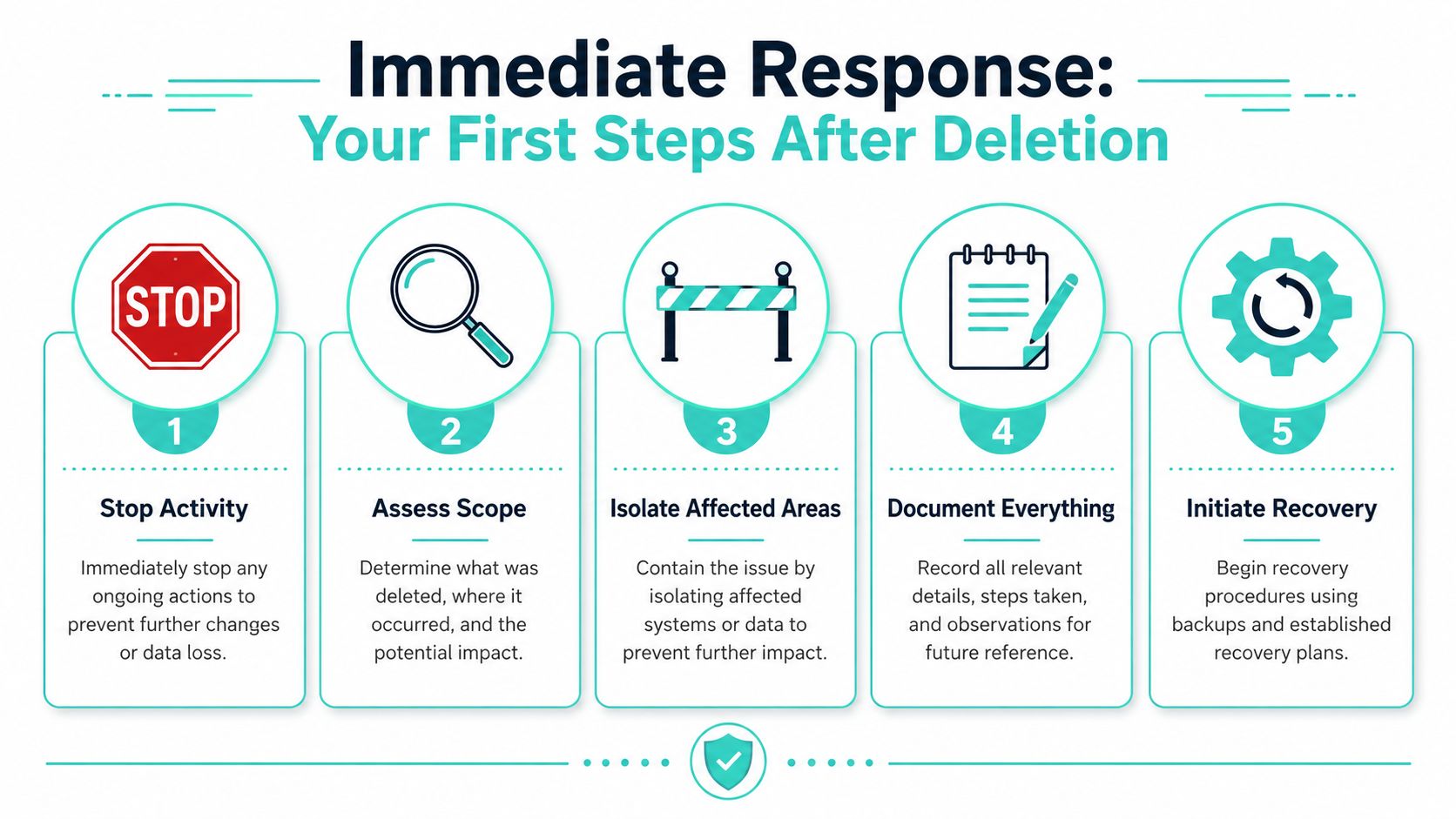
The first hour decides whether recovery stays tidy or turns into a long incident review. The right move isn't to start clicking restore everywhere. It's to contain change.
What to do in the first hour
Use a short triage sequence.
Stop further editing. Freeze activity in the affected Sitecore subtree, SharePoint library, or related workspace. If the loss touches a live campaign, pause content changes before editors create conflicting versions or new dependencies.
Confirm what disappeared. Name the exact item, path, URL, language version, environment, and time window. In Sitecore, identify whether it's the item itself, a datasource, a media asset, or a presentation detail issue. In SharePoint, confirm whether it's a file, folder, list item, or page.
Check the nearest recovery layer first. That usually means the Sitecore Recycle Bin or the SharePoint Recycle Bin before moving into broader restore methods. Start with the least destructive option.
Capture evidence. Take screenshots, export audit details if available, note who noticed the issue, and document what actions have already been taken. This protects you from compounding the incident.
Assign one recovery lead. One person should direct recovery. Everyone else should report findings, not act independently.
A useful discipline here is to treat deletion like a short incident response cycle rather than a support ticket. If your team already runs database backups, make sure the recovery lead knows where backup ownership sits. If your Sitecore estate relies on SQL infrastructure, it's worth aligning recovery procedures with broader backup operations such as documented MSSQL Server backup practices.
What not to do
The most damaging mistakes usually come from improvisation.
- Don't republish from memory. Recreating a lost page without checking linked items often restores appearance but loses metadata, workflow state, or personalization setup.
- Don't run broad restores first. Restoring an entire database or library before confirming scope can roll back valid work from other teams.
- Don't let multiple admins troubleshoot in parallel. Two people checking logs, bins, and restores independently can overwrite one another's actions.
- Don't save recovered outputs onto the same stressed destination during low-level file recovery work. Where open-source recovery tooling is involved, LifeTips Alibaba's write-up on
photorecrecovery behavior notes operational differences between read-only recovery tools and write-oriented utilities, and highlights why destination choice matters.
Practical rule: contain first, restore second, clean up third.
This order feels slow when business pressure is high. In practice, it's faster because it avoids undoing your own recovery work.
Sitecore Recovery Workflows From Recycle Bin to AI
Sitecore recovery has to be approached in layers. Start with the smallest reversible action. Move outward only when item-level recovery won't return the platform to a trustworthy state.

Start with item-level recovery
For straightforward content deletions, the Sitecore Recycle Bin is the first checkpoint. It's fast, low-risk, and usually the cleanest option when the item was deleted recently and no one has restructured the surrounding content tree.
When restoring from the Recycle Bin, don't just restore the page and walk away. Check these points immediately after recovery:
- Parent location. Confirm the item returned to the expected node and not just somewhere structurally valid.
- Datasource integrity. Open renderings and verify that linked content still exists.
- Media references. Pages often look restored while key media items remain missing.
- Workflow status. Recovered content may need to be re-entered into approval or publication flow.
- Publishing state. Item recovery in content management doesn't always mean the live site is correct until publishing is reviewed.
If the item still exists but the content is wrong, versioning is often safer than deletion recovery. Editors sometimes report a "deleted page" when the underlying issue is that a later version replaced approved content. In that scenario, item history and version selection are more precise than a restore.
When backups and infrastructure recovery matter
Some incidents go beyond content operations. A template item was removed. A branch structure disappeared. Shared content assets were deleted across multiple sites. A deployment overwrote serialized definitions. At that point, item-level restore may return fragments while leaving the platform inconsistent.
A simple decision view helps:
| Scenario | Best first recovery path | Main trade-off |
|---|---|---|
| Single page or datasource deleted | Sitecore Recycle Bin | Fast, but check dependencies |
| Approved content replaced by bad edit | Version rollback | Precise, but only if versioning is intact |
| Large tree deletion or shared structure loss | Targeted database restore into a safe comparison path | More control, more effort |
| Environment-wide corruption | Backup or snapshot recovery | Broader impact, requires change coordination |
For deeper recovery, teams commonly use database restores from backups into a non-production context for comparison and extraction, or they use infrastructure-level recovery such as Azure snapshots when the failure is wider than content. The key is to avoid restoring blindly into production. Compare first, extract what you need, then reintroduce it in a controlled way.
Where operational automation is involved, PowerShell is often the practical bridge between diagnosis and controlled restoration. For scripted validation, audit extraction, and repeatable administrative tasks, a reference point is creating PowerShell scripts for platform operations.
Restore the smallest complete unit that preserves integrity. In Sitecore, that usually means more than one item and less than a full environment.
Where Sitecore AI changes the recovery conversation
The interesting shift in Sitecore isn't just faster recovery. It's preventing avoidable deletion incidents and reducing the time it takes to understand dependency impact.
SitecoreAI Agentic Studio launches with 20 pre-built agents that automate complex workflows ranging from campaign planning to content migration, enabling marketers to design custom agents and flows using visual tools without coding, as described by CMS Critic's coverage of SitecoreAI Agentic Studio. In practice, that matters because deletion risk often appears inside content operations, migration tasks, and governance gaps, not only in infrastructure failures.
There are several useful patterns here:
- Pre-deletion policy checks. An agent can require confirmation when an editor tries to remove an item with active presentation or shared references.
- Dependency analysis. AI-assisted workflows can flag linked assets, child items, or campaign dependencies before destructive actions proceed.
- Governance routing. Sensitive deletions can trigger approval or notify the right operational channel automatically.
- Content reconstruction support. When recovery isn't possible, AI can help rebuild structural drafts from existing briefs, reusable content, and connected assets.
Sitecore's broader AI direction also matters. Sitecore Stream is enterprise-ready AI built explicitly on the Microsoft Azure OpenAI service, integrating AI capabilities across the entire Sitecore DXP product line including Content Hub for content generation, image manipulation, and campaign brief creation, according to Diginomica's report on Sitecore Stream. For recovery planning, that opens a practical path: combine content operations, governance prompts, and dependency awareness inside the same DXP estate rather than bolting separate tooling onto it.
Independent developers are also extending the ecosystem. Flux Digital's overview of AI in Sitecore in 2025 points to tools such as Sitecore Gen AI, AI Content Profiler, and S-3PO. These aren't recovery tools by themselves, but they show where the platform is going. Teams that already think seriously about artificial intelligence strategies can use the same design thinking for deletion prevention, approval logic, and content governance.
Navigating SharePoint and Microsoft 365 Recovery Layers
SharePoint recovery is powerful, but many teams struggle because the platform hides its safety nets across user-level, site-level, and tenant-level controls. If you don't know which layer you're dealing with, you can waste time looking in the wrong place.

How the recovery layers actually work
At the practical level, most SharePoint deleted item recovery starts in one of three places:
| Recovery layer | Who usually accesses it | Best used for |
|---|---|---|
| User Recycle Bin | End users or site contributors | Recent accidental deletions |
| Site collection Recycle Bin | Site admins or higher-privileged users | Items removed from the first-stage bin |
| Version history | Editors, owners, or admins | Restoring prior document states without undeleting |
The first-stage Recycle Bin is the obvious stop. It's where users usually recover documents, list items, and pages they deleted recently. If the item isn't there, the second-stage or site collection Recycle Bin often acts as the next safety net.
Version history solves a different problem. If someone overwrote a document, changed a page incorrectly, or removed critical content from a list item without deleting the object, version restore is cleaner than undelete. That distinction saves time.
For organizations building intranets and document processes embedded within Microsoft 365, the platform itself is only part of the answer. Information architecture, permissions, SPFx customization, and automation shape what users can recover and what they can't. That's why platform design matters as much as retention setup in enterprise SharePoint solution delivery.
Why retention policies decide the outcome
Many clients assume that once an item leaves the visible recycle bin, it's gone. In Microsoft 365, that isn't always true. Deleted item recovery is governed by strict retention policies that define specific time-based milestones for data availability, such as Microsoft Exchange Online's Recoverable Items folder which automatically retains deleted items for a configurable period, often 14 to 30 days, before permanent purge, according to Microsoft community guidance on Recoverable Items behavior.
That principle applies across the broader ecosystem. What a user sees in SharePoint isn't the whole retention story. Legal hold, retention labels, preservation policies, and admin-defined controls can keep data recoverable while making self-service impossible. That's why user reports like "it's not in the bin" are only the start of the investigation.
If recovery options look inconsistent in Microsoft 365, check policy behavior before assuming the item is gone.
When the recovery option is grayed out
This is one of the most frustrating SharePoint scenarios because the UI suggests recovery exists, but the user can't use it. The practical response is procedural:
- Confirm the user context. Is the person looking in the right site, library, or personal scope?
- Check whether the item exceeded the visible retention window. A second-stage or policy-held location may still exist.
- Ask an administrator to verify whether recovery controls are disabled. Don't rely on the user interface alone.
- Escalate with specifics. Provide item name, original location, deletion timing, and screenshots of the disabled control.
The confusion here is documented. A 2025 user survey by TechCommunity found that 28% of Microsoft 365 users report confusion when the feature is grayed out, and zero official Microsoft docs address troubleshooting in this scenario, as noted in this Microsoft Q&A discussion on disabled deleted-item recovery.
That gap matters operationally. Users often get told to "contact your admin" with no useful next step. In practice, the escalation should ask for a policy check, recycle bin scope validation, and retention review, not just a generic support request.
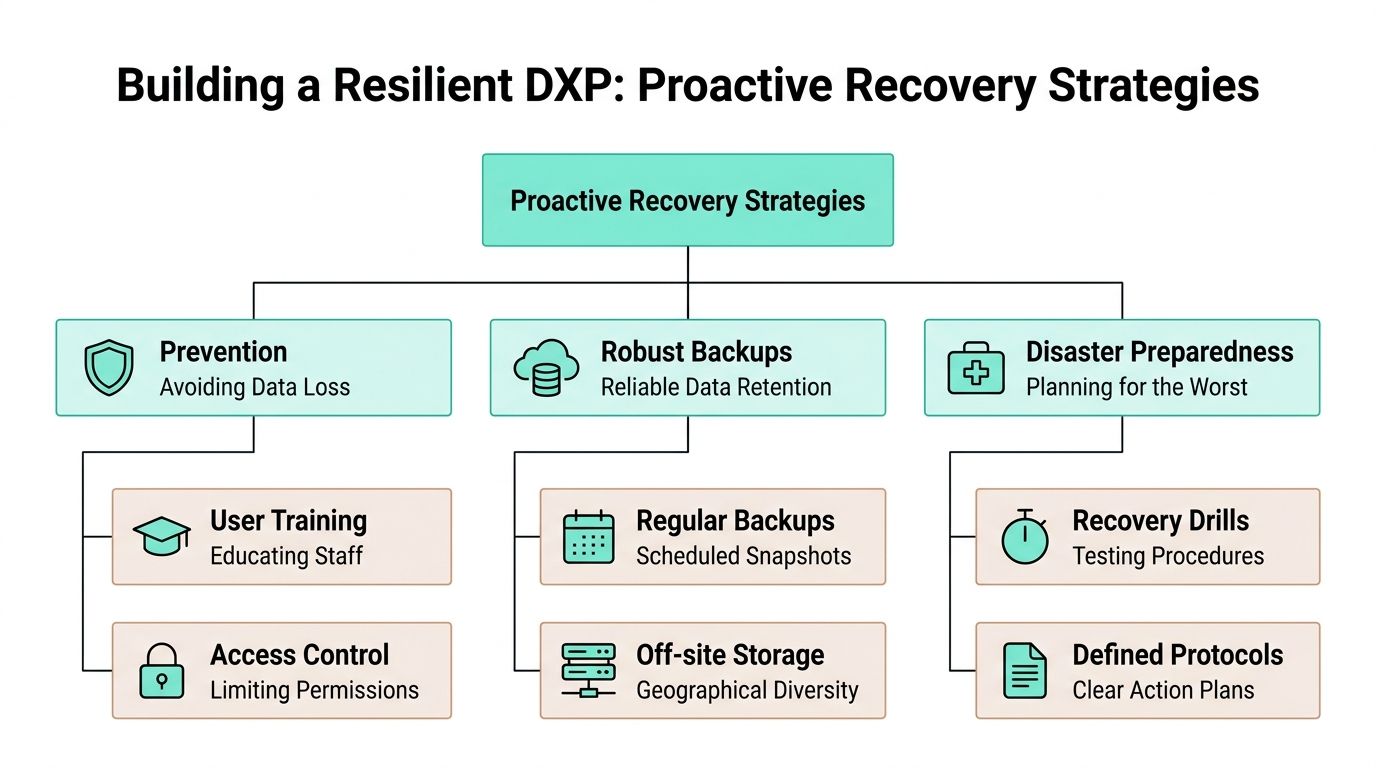
Building a Resilient DXP Proactive Recovery Strategies
Deleted item recovery is important. Designing a platform so that deletion doesn't become a crisis is more important.
Governance beats improvisation
Most recovery pain comes from weak operating models, not just missing tools. Teams need clear rules for who can delete what, where critical assets live, how long they're retained, and what counts as a controlled restore.
A resilient DXP usually includes these practices:
- Permission design that reflects risk. Editors shouldn't have broad delete rights across shared structures if their role only requires page maintenance.
- Backup ownership with restore testing. A backup is only trustworthy if the team has validated restoration paths.
- Content lifecycle rules. Archive and retention decisions should be deliberate, not left to ad hoc clean-up.
- Runbooks for common incidents. If a campaign page, media folder, or shared component disappears, the response shouldn't be invented in a meeting.
For cloud estates, resilience also depends on operations beyond the CMS itself. Infrastructure monitoring, backup orchestration, and recovery accountability need to sit inside a wider managed service model such as cloud support and operational governance.
Composable platforms create new recovery gaps
Composable DXP gives teams flexibility, but it also separates concerns that used to fail together. Content might live in one service, rendering in another, media in a third, and deployment logic somewhere else again. Recovery becomes harder because "restore the page" no longer describes a single technical action.
That risk isn't theoretical. Gartner's 2025 DXP Modernization Survey found that 41% of enterprises using composable stacks experienced irreversible content loss due to missing recovery workflows, cited by the University of Iowa's Microsoft 365 recovery page referencing the survey. The operational lesson is straightforward: modern architecture needs modern recovery design.
A practical resilience model for Sitecore XM Cloud, headless front ends, and SharePoint-connected ecosystems should include:
| Control area | What good looks like |
|---|---|
| Content governance | Item ownership, deletion approval, audit visibility |
| Backup and restore | Platform-specific restore tests, not just backup jobs |
| Deployment safety | CI/CD checks that protect shared templates and serialized definitions |
| Dependency mapping | Clear view of relationships across content, media, and presentation |
This becomes especially important during migrations and replatforming. Teams moving to composable stacks should think about recovery while designing the target state, not after go-live. The same thinking appears in guidance on strategic data migration for modern teams, where sequencing, verification, and rollback planning matter as much as the move itself.
Strong recovery posture starts before the first deletion. It begins in architecture, permissions, and operating discipline.
When Standard Recovery Fails Advanced Troubleshooting
Standard recovery paths fail for predictable reasons. The item was hard-deleted outside the usual retention window. A deployment overwrote the object and its dependencies. A content tree change removed more than the team first reported. In enterprise DXP estates, recovery work shifts from clicking restore to reconstructing the sequence of events and choosing the least risky path back.
Use logs to reconstruct the event
Start with a timeline.
For Sitecore, check audit fields, workflow history, publishing activity, package installation records, serialization commits, and deployment logs together. A deleted item in the content tree is often only part of the incident. I have seen SXA tenant changes, branch template updates, and serialized template pushes remove or reshape items in ways that look like simple deletion from the editor view. If your Sitecore estate includes AI-assisted content operations, review any automated content generation or enrichment jobs tied to the affected templates or items as well. The recovery decision depends on whether the platform lost one item, a set of related items, or a valid newer state replaced an older one.
For SharePoint and Microsoft 365, move past the site UI and review Purview audit events, retention configuration, library settings, and tenant-level administrative actions. The key questions are specific. Who performed the delete or purge action? Was the content subject to a retention label or policy? Did a sync client, Power Automate flow, migration utility, or bulk script change the library before the item disappeared? Those answers determine whether recovery should come from Microsoft 365 recovery layers, a backup product, or manual rebuild.
The trade-off is speed versus precision. A fast restore can reintroduce stale content, break references, or overwrite later valid changes. A slower investigation often avoids a second incident.
Know when to escalate
Escalation should happen as soon as the evidence points beyond routine admin recovery.
In Sitecore, escalate when the missing item affects presentation, rendering variants, templates, media links, or serialized definitions across environments. Escalate when CM and CD behavior no longer match, when publish targets disagree, or when the issue appeared immediately after a release. At that point, the problem is no longer item recovery alone. It is platform state reconciliation.
In SharePoint, escalate when audit results conflict with what site owners expect, when retention settings block normal deletion or restore behavior, or when the missing content is one symptom of a wider library, permission, or policy issue. The same applies if legal hold, eDiscovery, or Purview retention is involved. Administrative intervention needs to protect evidence, not just restore convenience.
A good escalation pack saves hours. Include the item path or URL, deletion window, affected users, related releases or migrations, audit extracts, retention details, and the business deadline for recovery. That gives your internal platform team, Microsoft support, or a specialist partner enough context to choose between restore, rebuild, or targeted extraction from backup.
If content, configuration, and infrastructure are tangled together, bring in people who know both platforms well. Kogifi can help with enterprise platform support, recovery planning, and long-term governance for Sitecore and Microsoft 365 estates.