


Your Sitecore instance looks healthy from the front end. Pages render. Forms submit. Authors keep publishing. Then a day later, marketing asks why personalization feels wrong, automation didn't trigger, or analytics looks incomplete. In SharePoint, the equivalent problem is just as familiar: content exists, but search doesn't surface it, scheduled work didn't run, or a sync process stalled.
Those failures usually don't start in the page template. They start in the background. A server-side worker that nobody sees, and almost nobody thinks about, stopped doing its job.
That's where Windows Services matter. They're one of the invisible mechanisms that keep enterprise platforms operational when no one is logged into the server, when application pools recycle, and when business processes need to continue after a reboot. If you manage Sitecore, SharePoint, or adjacent integration services, understanding this layer isn't optional. It affects platform stability, operational recovery, and your security posture.
For teams planning DXP modernization, this is also part of the bigger architecture question. A digital experience platform strategy only works when the infrastructure behind content operations, indexing, analytics, and automation is dependable.
Table of Contents
- The states administrators actually care about
- Startup types shape recovery after reboot
- Architecture in practice
- Start with the Services console
- Use sc.exe when you need precision
- Use PowerShell when you need repeatability
- The developer view in .NET
- Run services with the least privilege they need
- Treat recovery settings as part of deployment
- Make service changes auditable
The Invisible Engine Driving Your Digital Experience Platform
A lot of enterprise outages don't look like outages at first.
In Sitecore, you might still have a working content tree and responsive delivery pages, but the experience layer starts drifting. Contact data lags. Marketing automation doesn't reflect current behavior. Search-related processing falls behind. The platform looks available, but parts of its business value have gone missing.
SharePoint has the same pattern. Users can still open documents and browse team sites, yet background activity is where trouble starts to show. Search freshness degrades. Scheduled jobs miss their window. Admins begin troubleshooting symptoms in the UI when the underlying issue sits lower in the Windows stack.
Background work keeps the platform honest
Windows Services are often the worker process behind those platform behaviors. They handle the sort of long-running background work that should continue whether anyone is signed in or not. That makes them especially relevant for DXP and CMS environments where the visible application depends on invisible processing.
Think about the difference between a receptionist and a facilities team. The receptionist is visible and interactive. The facilities team keeps the building functioning before anyone arrives and after everyone leaves. A Windows Service belongs in that second category.
Practical rule: If a platform capability must survive logoff, reboot, or an empty remote desktop session, it probably belongs in a service or depends on one.
Why this matters to platform owners
This isn't only an infrastructure concern. It affects campaign execution, content discoverability, operational trust, and incident response. When enterprise teams ask why a platform feels inconsistent, the answer is often not in the CMS authoring interface. It's in the services, scheduled workers, and supporting processes around it.
For Sitecore-heavy estates, that's particularly important because platform value increasingly depends on orchestration across search, personalization, data movement, and AI-adjacent processing. Those capabilities don't stay healthy by accident. They depend on the background engine being configured, monitored, and secured properly.
Core Concepts of a Windows Service
A Windows Service is built for long-running background tasks. Microsoft describes Windows services as a core Windows component that can start without user intervention, run with no user interface, and continue operating after the user logs off. Microsoft also notes that they were formerly called NT services, can start automatically at boot, can be paused and restarted, and can run under a different security account than the logged-on user, which is why they're commonly used for server software, monitoring agents, backup jobs, and network tools that must run independently of desktop sessions (Microsoft's Windows Services overview).
That definition matters because it separates a service from a normal executable.
A service is not just an app without a window
A desktop application assumes a person launches it and interacts with it. If that user logs off, closes the app, or disconnects a session, the process may stop or become irrelevant. That model works for editors, admin consoles, and migration tools. It doesn't work for background infrastructure.
A Windows Service behaves more like an autonomous building manager. It starts on a schedule or at boot, performs assigned work in the background, and doesn't need someone watching over it. That's why services fit jobs like indexing, queue processing, synchronization, telemetry collection, and scheduled maintenance.
Three traits define the model:
- No interactive interface: The service runs without a desktop UI. That removes dependence on a user session.
- Independent startup behavior: It can start automatically when Windows starts, which is critical after patching or an unplanned reboot.
- Separate identity: It can run under a dedicated account instead of the logged-in administrator's account.
Why enterprise teams rely on them
For Sitecore and SharePoint estates, this is operationally useful because background processing shouldn't depend on someone opening Remote Desktop and remembering to launch a tool. If your platform needs a process to index content, process events, or maintain integrations around the clock, a service is the right operating model.
Here's the practical contrast:
| Type | Best fit | Weakness |
|---|---|---|
| Desktop application | Manual tools, admin utilities, one-off migration helpers | Depends on user interaction and session state |
| Windows Service | Continuous background work on a server | Needs careful security, monitoring, and recovery settings |
A healthy DXP environment usually has fewer “someone needs to run this” tasks and more “the platform handles this reliably in the background” tasks.
That shift is one of the quiet signs of architectural maturity.
Understanding the Service Lifecycle and Architecture
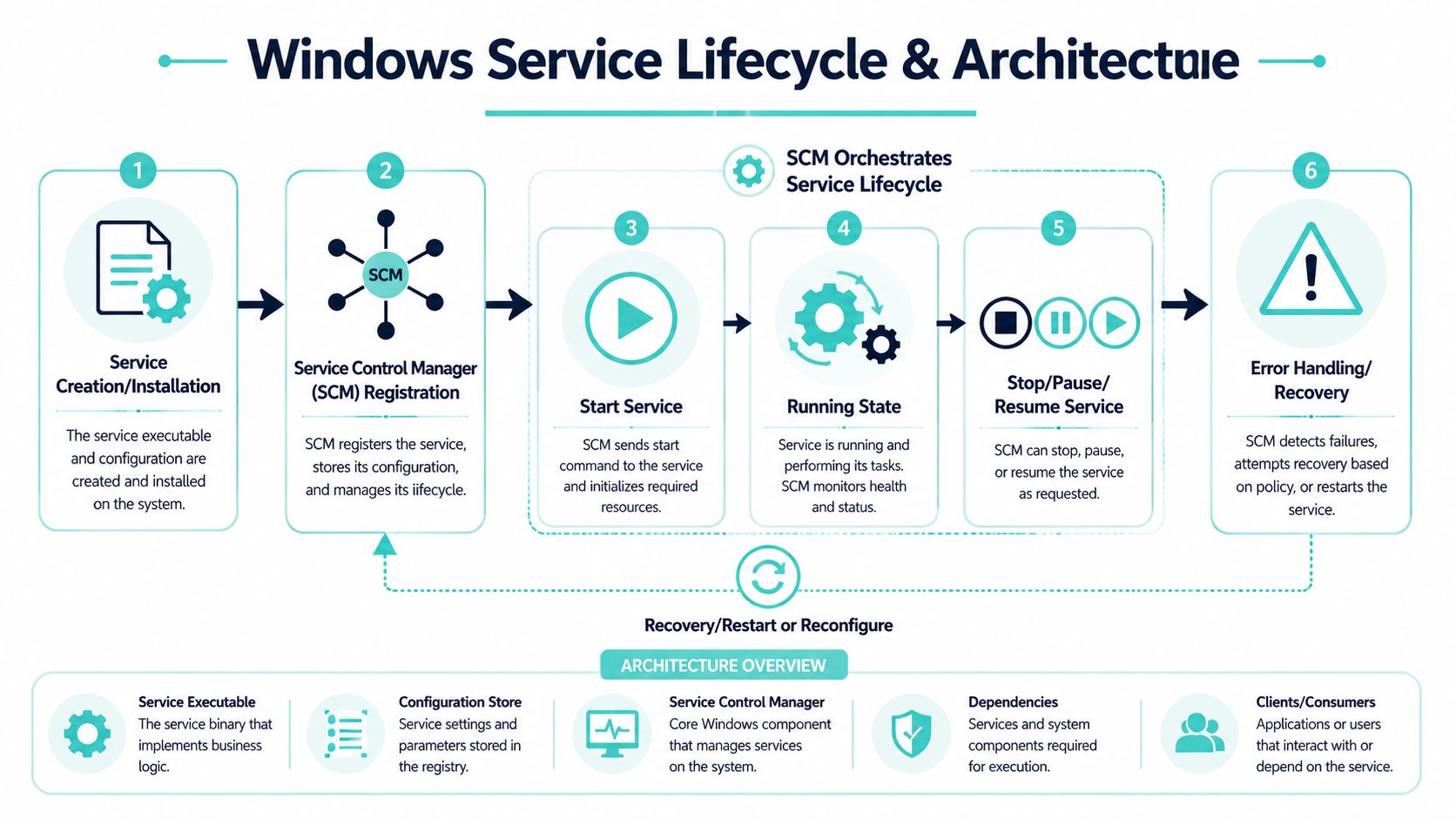
The center of service management in Windows is the Service Control Manager, usually shortened to SCM. Think of it as the operating system's control tower for services. It knows what services are installed, what account they run under, how they start, and what state they're currently in.
The states administrators actually care about
When a service is healthy, it's usually in a straightforward state such as Running or Stopped. But operational troubleshooting starts with the in-between states. Start Pending means Windows has accepted the start request but the process hasn't become fully active yet. Stop Pending means shutdown is in progress. Paused means the service is loaded but not actively doing its normal work.
Those states matter because they tell you where the failure boundary is. If a service never moves past Start Pending, the problem may sit in startup dependencies, configuration, permissions, or initialization logic. If it stops repeatedly after entering Running, the issue is often in the service itself or what it's trying to reach.
Startup types shape recovery after reboot
Startup type is one of the most overlooked settings in enterprise environments. It defines what happens when the server starts.
- Automatic: Windows starts the service during boot.
- Automatic (Delayed Start): Windows starts it shortly after the main boot sequence, which helps reduce startup contention.
- Manual: The service won't start unless something or someone triggers it.
- Disabled: Windows won't allow it to start until the setting changes.
For DXP platforms, that choice has consequences. If a Sitecore-related worker that supports processing or integration is left on Manual after maintenance, the website may appear healthy while key back-end functions remain down after restart. That's the kind of issue that slips through basic smoke testing.
Services should be classified by business criticality, not just by technical name. If the business depends on the function after every reboot, startup type should reflect that reality.
Architecture in practice
A useful way to picture the lifecycle is this sequence:
- The service is installed.
- SCM registers and manages it.
- Windows starts it according to startup rules or admin action.
- The service enters Running and performs work.
- Admins or dependent systems may stop, pause, or restart it.
- Recovery rules determine what happens after failure.
Good administrators don't just ask, “Is the service running?” They ask, “Does this startup model, account choice, and recovery behavior match the role this service plays?”
Why Services Are Critical for Sitecore and SharePoint
Enterprise platforms like Sitecore and SharePoint separate user-facing experiences from background processing for good reason. Authors, marketers, editors, and employees need a responsive interface. Indexing, automation, synchronization, and maintenance work often belong somewhere else.
That “somewhere else” is frequently a Windows Service.
Sitecore depends on quiet background execution
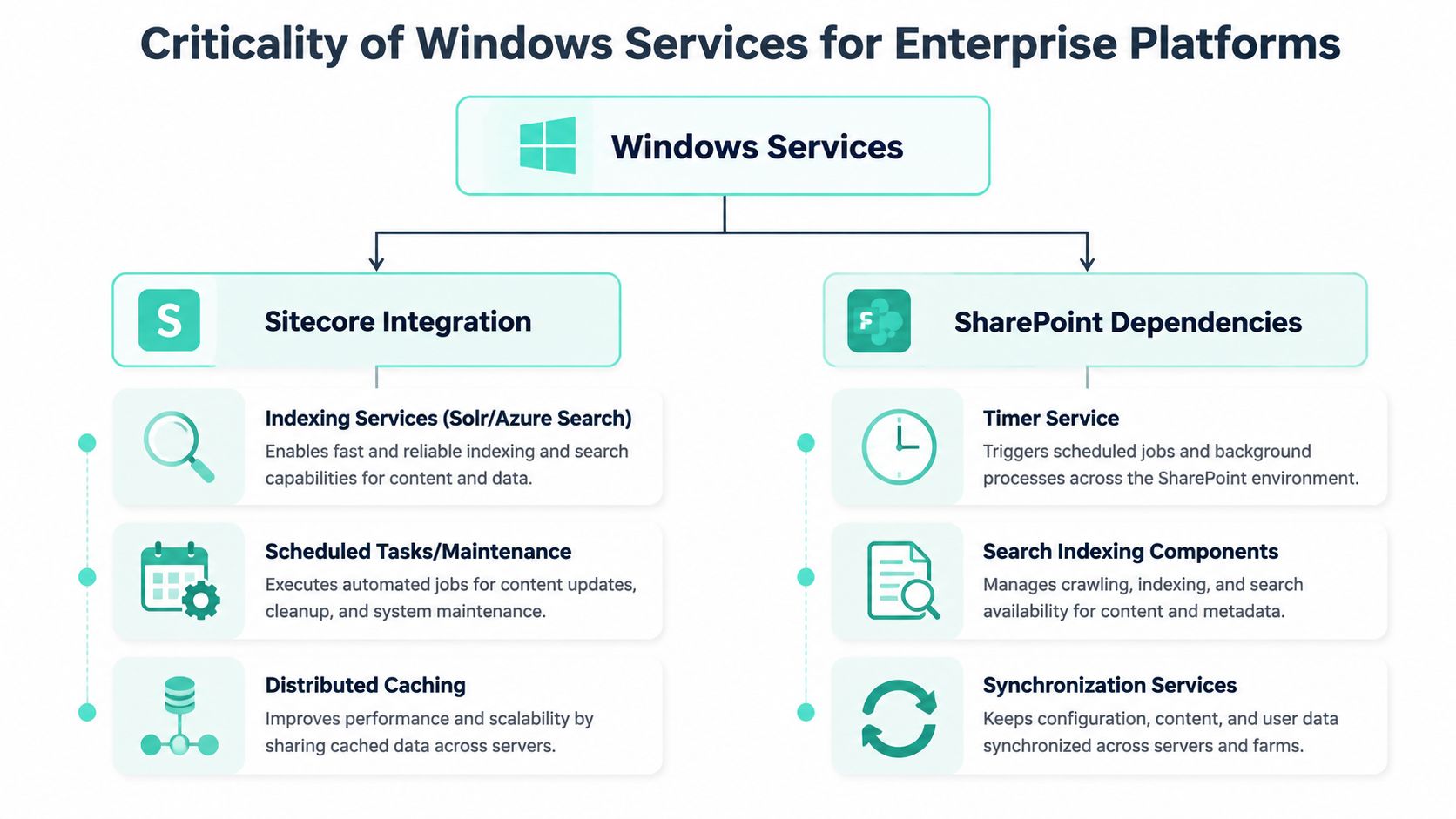
In Sitecore environments, some of the most valuable features rely on background workers rather than direct page requests. Marketing automation processing, xConnect-related operations, search indexing flows, and supporting maintenance tasks all fit the service pattern because they need persistence and isolation from interactive user sessions.
That matters even more in modern Sitecore estates where personalization and AI-informed experience delivery depend on timely, reliable data movement. If the background processing layer drifts, the front end may still render, but decisioning quality drops. Teams then misdiagnose the problem as content, rules, or analytics logic when the underlying issue is service health.
A practical architecture pattern in Sitecore is to move asynchronous or stateful processing out of the web request path whenever possible. That reduces pressure on delivery roles and makes failures easier to isolate. It also aligns with managed operations, cloud hosting, and service-oriented modernization work discussed in managed cloud services for enterprise platforms.
SharePoint has the same dependency pattern
SharePoint administrators know this through the SharePoint Timer Service (SPTimerV4) and search-related components. Scheduled jobs, administrative tasks, and search operations don't happen because the web UI exists. They happen because supporting services keep running and keep coordinating work in the background.
When those services stall, users report “search is bad” or “jobs aren't happening.” The platform itself may still look reachable. That's why service-level visibility matters more than surface-level uptime.
Here's a simple mapping of platform concerns to service thinking:
| Platform concern | Why a service model fits |
|---|---|
| Indexing and search freshness | Needs long-running background processing outside user requests |
| Automation and scheduled jobs | Must execute on time without user interaction |
| Data synchronization | Often requires retry logic, queue handling, and persistence |
| Platform maintenance | Works best when decoupled from author and delivery sessions |
In both Sitecore and SharePoint, business stakeholders experience service failures as feature failures. They rarely call it a Windows issue. They call it “the platform isn't doing what we paid for.”
That's the architectural lesson. Services aren't side infrastructure. They're part of the product behavior your users feel.
A Practical Guide to Managing Windows Services
Good service management starts with using the right tool for the task. Quick triage on a single server doesn't require the same approach as repeatable configuration across environments.
Start with the Services console
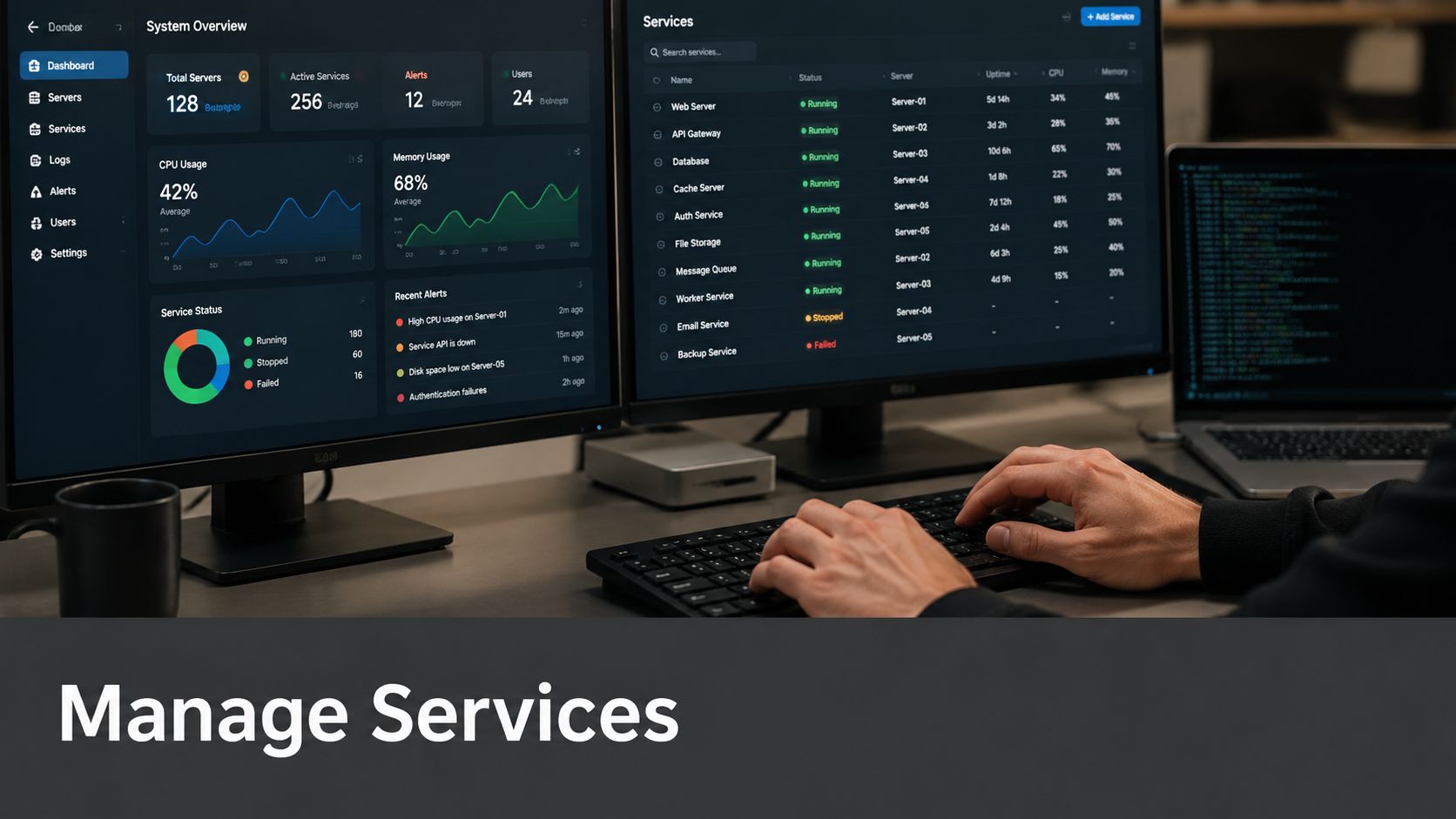
For immediate visibility, services.msc is still the fastest path. It shows service names, display names, status, startup types, and the account used to run each service. For one-server diagnostics, that GUI is often enough to confirm whether a dependency is stopped, misconfigured, or failing to start.
Use it when you need to:
- Confirm status quickly: Check whether a service is Running, Stopped, or stuck in transition.
- Inspect dependencies: See what must start first and what depends on the service.
- Review startup behavior: Catch a Manual or Disabled setting left behind after maintenance.
This is also where many admins first learn a hard lesson. A service can be present and installed correctly but still be operationally wrong because its startup type, identity, or recovery options don't match the workload.
Use sc.exe when you need precision
The built-in sc.exe tool gives you scriptable control over services. It's useful for querying service details, changing configuration, creating services for custom executables, and integrating service operations into deployment scripts. If you need command-line examples, this walkthrough on starting a service from the command line covers the basic operational pattern.
At the same time, this tool sits in an important security context. Red Canary notes that adversaries frequently abuse Windows services for persistence, and that service configuration data is stored in the Windows Registry where executables and recovery commands can be modified through tools such as sc.exe and Reg. Red Canary also identifies Windows Service as a top-10 technique, underscoring that this is a recurring detection category rather than an edge case, and highlights the practical reason: services start automatically at boot, which makes them a reliable persistence mechanism (Red Canary on Windows Service abuse).
That doesn't mean you avoid sc.exe. It means you log, restrict, and review its use.
Use PowerShell when you need repeatability
PowerShell is the better operational choice when you're managing several servers or folding service checks into automation.
Common commands include:
- Get-Service for inventory and current state
- Start-Service and Stop-Service for controlled operations
- Set-Service for startup type and related configuration
PowerShell shines when service management becomes part of platform operations rather than a one-off admin action. In practice, that includes patching workflows, pre-deployment checks, post-release validation, and estate-wide reporting. Teams that outsource support or platform operations sometimes handle this through scripted runbooks or managed services providers such as Kogifi for SharePoint and DXP maintenance, but the underlying control model is still PowerShell-friendly automation.
A visual walkthrough helps if you're training admins or junior engineers:
The developer view in .NET
For developers, a Windows Service is still just an application built around a service lifecycle rather than an interactive UI lifecycle. In .NET terms, that usually means implementing start and stop behavior cleanly, handling long-running operations safely, and avoiding assumptions about a desktop session.
A minimal conceptual shape looks like this:
public class MyService{public void OnStart(string[] args){// initialize workers, timers, or listeners}public void OnStop(){// stop processing and release resources}}The main design mistake is treating a service like a console app that happens to run in the background. Real services need structured logging, graceful shutdown, retry strategy, and predictable startup behavior.
Deployment and Security Best Practices
A service that runs reliably but with the wrong privileges is still a problem. In enterprise environments, the biggest mistakes usually come from convenience. Someone runs the service under an overly powerful account, skips recovery configuration, and leaves changes undocumented because “it's only infrastructure.”
That approach creates fragile platforms.
Run services with the least privilege they need
Windows allows a service to run under a different security account than the logged-on user. That flexibility is useful, but it also creates risk if teams default to broad privileges. A service account should have the permissions required for its exact function, nothing more.
For Sitecore and SharePoint workloads, this usually means separating identities by role. Search-related functions, integration jobs, and administrative background tasks shouldn't all share one catch-all identity. Isolation limits blast radius and makes troubleshooting cleaner.
The account choice for a service is an architectural decision, not a checkbox. It affects access, auditability, and incident containment.
Treat recovery settings as part of deployment
If a service fails, Windows can respond in different ways. Restarting the service may be appropriate for transient failures. In other cases, a restart loop hides a deeper dependency or configuration problem. The point is to decide deliberately.
A solid deployment standard includes:
- Recovery behavior: Define what Windows should do after first and repeated failures.
- Logging expectations: Make sure failures leave evidence in logs that operations teams review.
- Dependency awareness: Document what the service needs before it can start successfully.
In CI/CD terms, service deployment should be scripted, testable, and repeatable. Startup type, account assignment, recovery settings, and binary location should all come from code or deployment automation, not manual memory.
Make service changes auditable
Because services have a meaningful security footprint, changes to them deserve the same discipline as application releases. That includes who changed the executable path, who altered startup behavior, and who modified the account or registry-backed configuration.
A practical control set looks like this:
| Area | Good practice |
|---|---|
| Identity | Use dedicated low-privilege service accounts |
| Configuration | Script service creation and updates |
| Recovery | Define restart behavior intentionally |
| Change control | Log and review service configuration changes |
The teams that manage this well don't treat services as old Windows plumbing. They treat them as production assets.
Services vs Containers vs Serverless When to Use Each
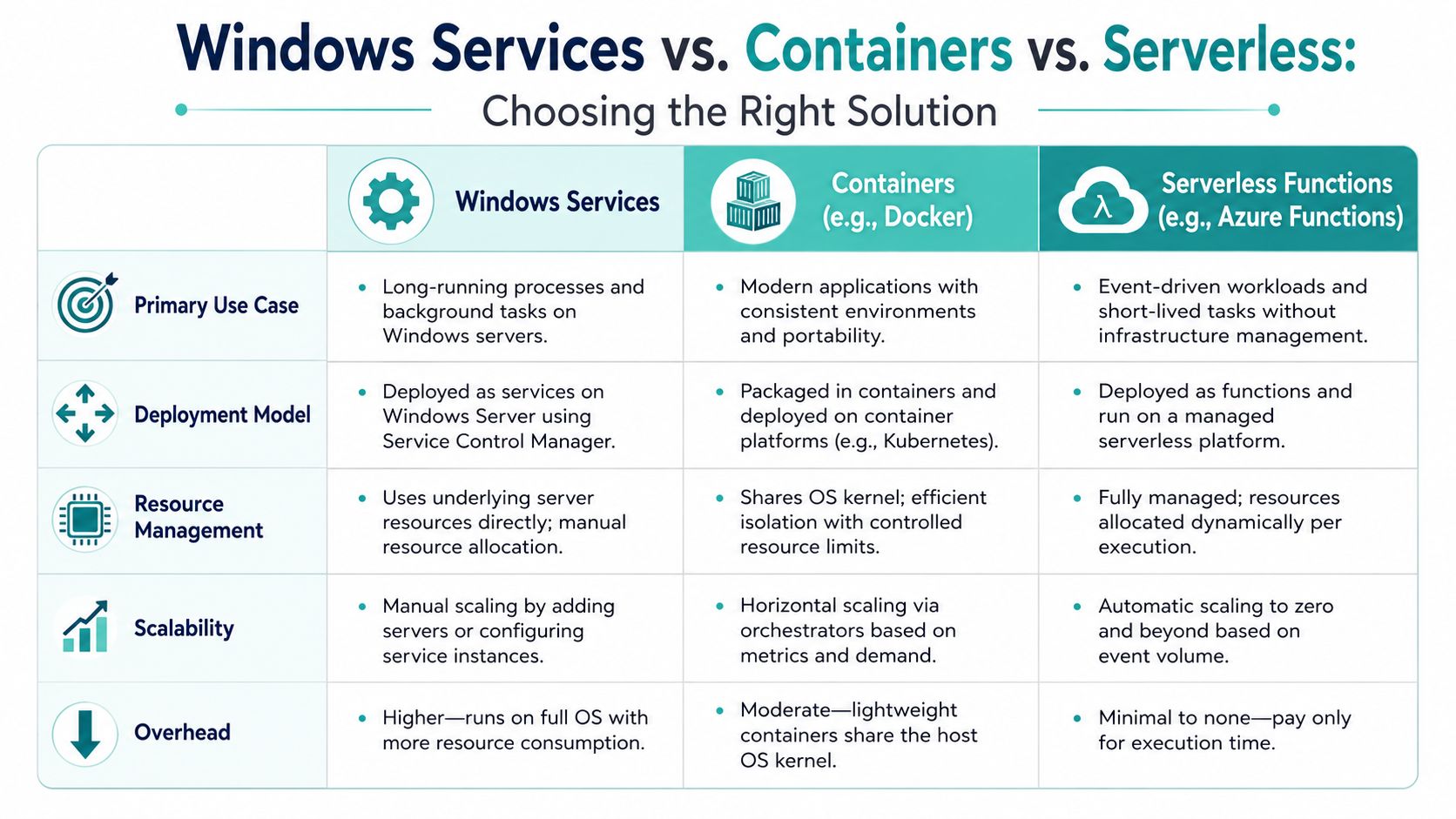
Windows Services still solve real problems, but they're not the only answer anymore. Architects now have to choose among service-based hosting, containers, and serverless functions depending on how tightly a workload is tied to the operating system, how portable it needs to be, and who will operate it.
Choose based on coupling and operations
A Windows Service is often the right fit when the workload is strongly coupled to a Windows host, depends on local machine behavior, or supports established enterprise software that already assumes this model. That's common in legacy integration points, SharePoint-adjacent operations, and some CMS support processes.
A container is better when you want packaging consistency, environmental portability, and cleaner deployment boundaries. If the process can run without strong dependence on host-level Windows service semantics, containerization often simplifies release management.
A serverless function fits event-driven work that should execute on demand rather than run continuously. If the job responds to a queue event, webhook, file upload, or scheduled trigger and doesn't need a permanently running process, serverless can reduce operational overhead.
For cloud strategy discussions, this maps well to the broader hosting decisions behind IaaS, PaaS, and SaaS in cloud computing.
A simple architecture test
Use this decision frame:
- Pick a Windows Service when the task must stay resident, survive user logoff, and integrate closely with Windows server operations.
- Pick a container when deployment consistency and portability matter more than host-native service management.
- Pick serverless when the workload is short-lived, event-driven, and doesn't justify a continuously running process.
Don't modernize by reflex. Modernize by workload shape. Some background jobs belong in a container or function. Others still belong in a well-managed Windows Service.
The right answer for Sitecore and SharePoint environments is often mixed architecture. Keep the host-coupled or platform-specific jobs where they belong, and move loosely coupled processing to containerized or serverless patterns when that reduces operational friction without breaking supportability.
If your team is evaluating Sitecore, SharePoint, or broader DXP operations and needs help connecting platform behavior to the infrastructure underneath it, Kogifi works on implementation, upgrades, audits, support, and modernization planning across enterprise content and experience platforms.