


You usually need this skill when something important is already broken.
A Sitecore role won't come up after a deployment. A SharePoint background service is stuck. RDP is blocked, slow, or reserved for a jump-host workflow. The web app is down, content authors are waiting, and the only thing you can reach quickly is a terminal. In that moment, starting a service from the command line stops being basic admin knowledge and becomes operational muscle memory.
For DXP estates, that matters more than it does in a toy environment. Sitecore solutions often depend on a chain of Windows services, IIS application pools, search components, indexing jobs, integration endpoints, and scheduled processes. SharePoint has its own stack of timer jobs, service instances, and supporting Windows services that can fail in ways the GUI doesn't explain clearly. You need commands that are fast, repeatable, and safe to automate.
Table of Contents
- PowerShell for readable day to day control
- When sc.exe is the better tool
- Remote control and delayed startup decisions
- A verification workflow that works across platforms
- Logs tell you why the start failed
- Automate the boring checks
Why Manage Services from the Command Line
The command line wins because it removes friction. You don't wait for a console to load, click through nested service panes, or hope the remote session stays responsive. You identify the service, run the command, verify state, and move on.
That speed matters in enterprise platforms. In Sitecore, you might need to restart a role after a config transform, bring back a search-related process, or verify that a supporting service is running after a release. In SharePoint, the difference between checking a service in a GUI and querying it directly can be the difference between a short interruption and a long incident call.
Built-in terminal tools have been part of administration for a long time because they work without extra software and across operating environments. A 2024 command-line tutorial showed how built-in tools such as wc, cut, and awk can process a website-traffic CSV directly in the terminal, including analysis of a file containing 1,250 visitors and 4,500 page views in a day. That same practicality is why service control from the shell remains so effective for operators.
What the command line gives you that GUIs do not
- Repeatability. You can run the same command in dev, staging, and production with only the machine or service name changed.
- Automation. A manual fix can become a script, then a deployment step, then an operational runbook.
- Remote access. If you can open a shell, you can often recover service state even when full desktop access isn't available.
- Auditability. Commands are easier to document in incident notes and easier for teams to peer review.
Practical rule: If you had to click it twice, you should probably know the command for it.
For teams moving deeper into release automation and platform operations, command-line service control sits right beside CI/CD fundamentals, environment consistency, and scripted recovery. If you're sharpening that broader skill set, a hands-on designing and implementing DevOps exam can be a useful way to pressure-test how well you understand operational workflows, not just syntax.
Managing Windows Services for Sitecore and SharePoint
Windows is still where a lot of serious Sitecore and SharePoint work happens. Even when parts of the wider estate move toward containers or managed services, many teams still operate Windows-hosted application roles, search components, schedulers, integration services, and batch processes that need direct service control.
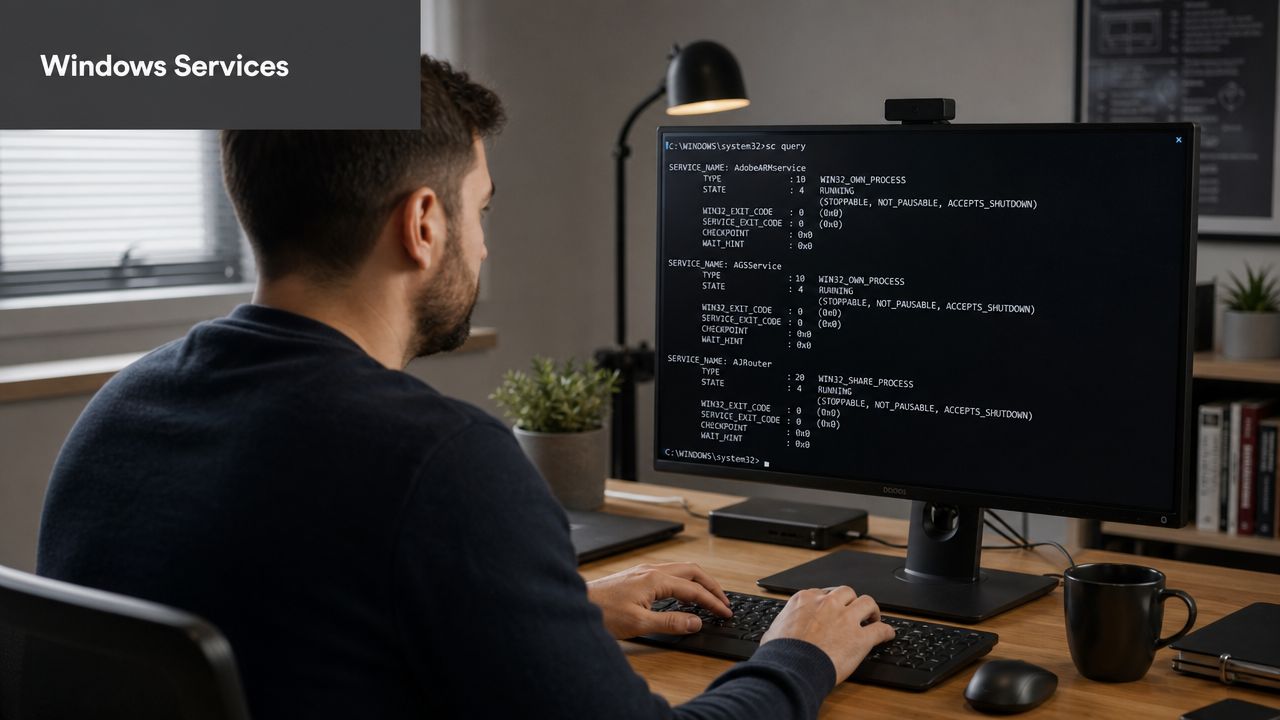
The reliable pattern is straightforward. Use an administrator Command Prompt or PowerShell session, identify the exact service name, start it with the right tool, and then verify runtime state. For Windows services, the practical command set is net start "SERVICE-NAME", sc start "SERVICE-NAME", or Start-Service -Name "SERVICE-NAME". If the service name contains spaces, quote it. That workflow is documented in Windows service command guidance.
PowerShell for readable day to day control
For most administrators, PowerShell is the best default on Windows because the output is easier to work with and it fits naturally into larger scripts.
Typical commands:
Get-Service | Where-Object {$_.DisplayName -like "*Sitecore*"}Get-Service | Where-Object {$_.DisplayName -like "*SharePoint*"}Start-Service -Name "W3SVC"Stop-Service -Name "W3SVC"Restart-Service -Name "W3SVC"Get-Service -Name "SPTimerV4"Start-Service -Name "SPTimerV4"For Sitecore environments, the exact service names vary by topology and what you've installed around the platform. In practice, administrators often use PowerShell first to discover the service object and then act on the precise Name value rather than the display label shown in Services.msc.
A sensible working pattern looks like this:
- Find the service with
Get-Serviceand a narrow filter. - Start or restart it with
Start-ServiceorRestart-Service. - Confirm status immediately with
Get-Service -Name "...". - Check the dependent application rather than assuming the service start solved the incident.
If you're standardizing repeatable recovery tasks, it's worth building those steps into scripts instead of pasting one-liners ad hoc. This guide to creating PowerShell scripts is a good reference for turning manual admin steps into reusable operational routines.
When sc.exe is the better tool
sc.exe is less friendly, but it gives you direct control and is often the fastest option when you're on a constrained host, using remote service management, or working from a minimal shell.
Examples:
sc query "SPTimerV4"sc start "SPTimerV4"sc stop "SPTimerV4"You can also use it to check whether you're targeting the right service name at all:
sc query type= service state= allFor SharePoint, SPTimerV4 is a common example because the SharePoint Timer Service is central to scheduled work. For Sitecore, you may be managing surrounding Windows services rather than a single product-branded service, especially in estates where IIS, Solr on Windows, scheduled integration workers, or custom connectors carry part of the platform responsibility.
Later in a troubleshooting session, this video is a useful visual refresher for Windows service control from the shell:
On Windows, I prefer PowerShell for human-operated tasks and
sc.exefor terse operational scripts, remote targeting, and situations where I want behavior that maps closely to the Service Control Manager.
Remote control and delayed startup decisions
For remote service operations, sc can target another machine directly. The pattern is to query first, then start or stop the service on the remote host:
sc \\CONTENTMGMT01 querysc \\CONTENTMGMT01 start "SPTimerV4"sc \\CONTENTMGMT01 stop "SPTimerV4"That remote pattern is documented in this practitioner discussion of sc against remote machines. The same guidance notes a real operational caveat. The Service Control Manager expects the service to report initialization within a timeout window that practitioners commonly describe as about 30 to 60 seconds. If startup work is heavy and the service doesn't return control quickly, Windows may treat it as failed or delayed.
That shows up often in enterprise application stacks. A service may be technically alive but blocked on dependencies, warming caches, attaching to a downstream endpoint, or waiting for another component. When that happens, don't stop at start.
Use a post-start checklist:
- Query status again with
sc query "SERVICE-NAME". - Check dependency readiness before blaming the service itself.
- Review startup policy if order matters between dependent services.
- Change startup mode deliberately when needed with
sc config "SERVICE-NAME" start=delayed-auto.
That last command is especially useful when a SharePoint or Sitecore supporting service needs a little room for database, search, or network-backed dependencies to come online first.
Controlling Linux Services with systemd and SysVinit
A lot of DXP teams touch Linux even if the main CMS authoring stack lives on Windows. Search, caching, reverse proxy layers, queue consumers, integration workers, and utility services often run there. In composable Sitecore-oriented estates, it's common to see Nginx, Solr, Redis, or custom services managed from a Linux shell.
systemd for modern DXP dependencies
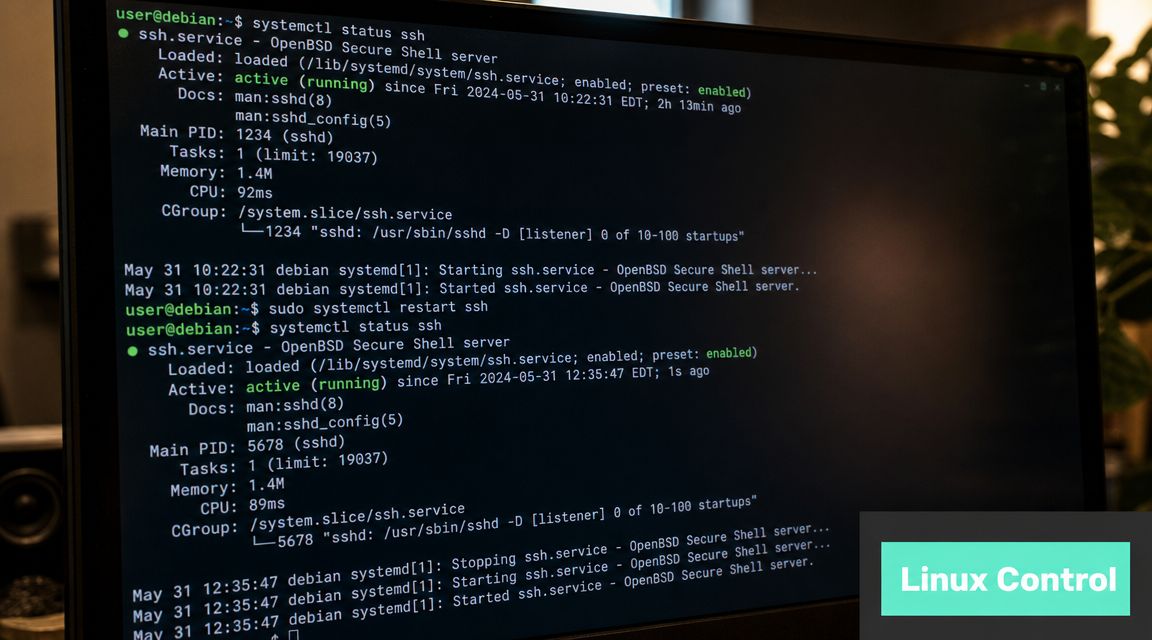
On modern distributions, systemd is the standard service manager. The command you use is systemctl.
Core commands:
sudo systemctl start nginxsudo systemctl stop nginxsudo systemctl restart nginxsudo systemctl status nginxFor common DXP dependencies, the names may look more like this:
sudo systemctl start solrsudo systemctl status solrsudo systemctl start redissudo systemctl status redisIf a service needs to start automatically on boot, enable it:
sudo systemctl enable nginxsudo systemctl enable solrAnd if you need to prevent it from auto-starting:
sudo systemctl disable nginxThe key operational advantage with systemctl is that it gives you both control and visibility. You aren't just starting a process. You're interacting with a managed unit that can expose state, recent logs, dependencies, and startup failures in a consistent way.
A few habits help in production-like environments:
- Use
statusafter every start. It catches obvious failures immediately. - Restart with purpose. If a search service failed because of a bad config or unavailable disk, restart alone won't fix anything.
- Enable only what should survive reboot. Temporary recovery actions shouldn't inadvertently become permanent startup policy.
Legacy SysVinit commands still show up
Older Linux environments may still expose the service command. You might see:
sudo service nginx startsudo service nginx stopsudo service nginx statusThis is usually a compatibility layer or an older init system. It still works in some estates, but systemctl is the better default when available because it exposes more useful state and behaves more consistently across current distributions.
If you're inheriting an older environment, don't waste time arguing with its age. Check what init system it uses, then use the native control path for that host.
For administrators supporting Sitecore-connected stacks, that flexibility matters. You may have one environment where Solr is a Windows service, another where it runs under Linux with systemd, and a third where the whole search tier is containerized. Starting a service from the command line is the same operational skill, but the command surface changes with the host.
Orchestrating Modern DXP Services with Docker
In newer DXP delivery models, you're often not starting one service. You're starting a set of interdependent services. That changes how you think about service control.
A Sitecore-oriented container stack might include a CM role, an identity-related component, a search engine, a database, and supporting utilities. Even in local development, the right question usually isn't "How do I start Solr?" It's "How do I bring up the environment in a known-good order and then target one component when I need to?"
Treat the stack as a unit
With Docker Compose, the normal control surface is the composition file, not each container in isolation.
Typical commands:
docker compose up -ddocker compose downdocker compose psup -d starts the defined services in the background. down stops and removes them. ps tells you what's currently running inside that composed application.
A simplified conceptual layout for a local Sitecore-style stack could look like this:
services:cm:image: sitecore-cmsolr:image: solrsql:image: mssqlYou don't need to manage each container manually if the compose file already defines the relationships. That's one reason teams often get better consistency with Compose-based development and lower-friction onboarding for technical teams.
If you want a crisp explanation of where Compose fits relative to image-building, this comparison of Docker Compose vs Dockerfile is worth bookmarking. They solve different problems, and confusing them leads to messy operational habits.
Service targeted actions inside a composed environment
Once the stack is up, you can still act on an individual service:
docker compose restart solrdocker compose restart cmdocker compose stop solrdocker compose start solrThat model fits real DXP troubleshooting well. If search indexing is failing, you may only need to restart solr. If content management is unhealthy after a config change, restart cm without disrupting the rest of the stack.
Use this decision guide:
| Situation | Better action |
|---|---|
| Fresh local environment build | docker compose up -d |
| One service is unhealthy | docker compose restart <service> |
| Full environment teardown needed | docker compose down |
| Quick runtime check | docker compose ps |
Containerized service control is also where Sitecore AI-adjacent workflows become more operationally interesting. Teams experimenting with personalization services, orchestration layers, or integration components in composable architectures need startup routines they can script and repeat. The command line is still the backbone. The difference is that you're managing service groups and dependencies through a higher-level orchestration tool rather than a single OS service manager.
Mastering Service Control on macOS with launchd
macOS isn't where most production Sitecore or SharePoint estates run, but a lot of developers and solution architects work there every day. If your local machine hosts Redis, a local proxy, message-handling tooling, or other development dependencies, launchd is the native service framework you need to know.
The command-line interface is launchctl. It manages jobs defined in property list files, usually called .plist files.
LaunchDaemons and LaunchAgents are not the same
This distinction matters because it changes who the service runs for and when it starts.
- LaunchDaemons run at the system level. They suit background services that shouldn't depend on a logged-in user session.
- LaunchAgents run in a user context. They make sense for per-user tooling or local development helpers that only need to exist when that user is signed in.
If a developer is running a local dependency for DXP work, the choice between agent and daemon affects startup timing, permissions, and whether the process survives logout.
Useful launchctl patterns for local development
A few commands cover most needs:
launchctl listlaunchctl load ~/Library/LaunchAgents/com.example.redis.plistlaunchctl unload ~/Library/LaunchAgents/com.example.redis.plistlaunchctl start com.example.redislaunchctl stop com.example.redisOn newer macOS versions, you may also see bootstrap and bootout used instead of the older load and unload patterns, depending on how the job is managed. The important point is operational consistency. Use the label defined in the plist, not your memory of what the process is "probably called."
For local Sitecore-adjacent development, common use cases include:
- Starting a local cache service needed by tooling or middleware
- Managing a development proxy that fronts local app traffic
- Keeping support processes scriptable instead of tied to desktop apps
A developer workstation becomes much easier to reproduce when local dependencies start from the shell and not from a row of menu bar icons.
If your team works across Windows servers, Linux support hosts, containerized stacks, and macOS laptops, operational maturity becomes apparent. The exact command changes, but the discipline stays the same. Start, verify, inspect logs, and document the known-good path.
Verification Logging and Automation Best Practices
Starting the service is the easy part. Knowing whether it came up cleanly is where experienced operators separate themselves from guesswork.
A command returning without error doesn't prove the application is healthy. In Sitecore and SharePoint estates, a service can report running while its dependent function is still unavailable, half-initialized, or throwing exceptions in the background.
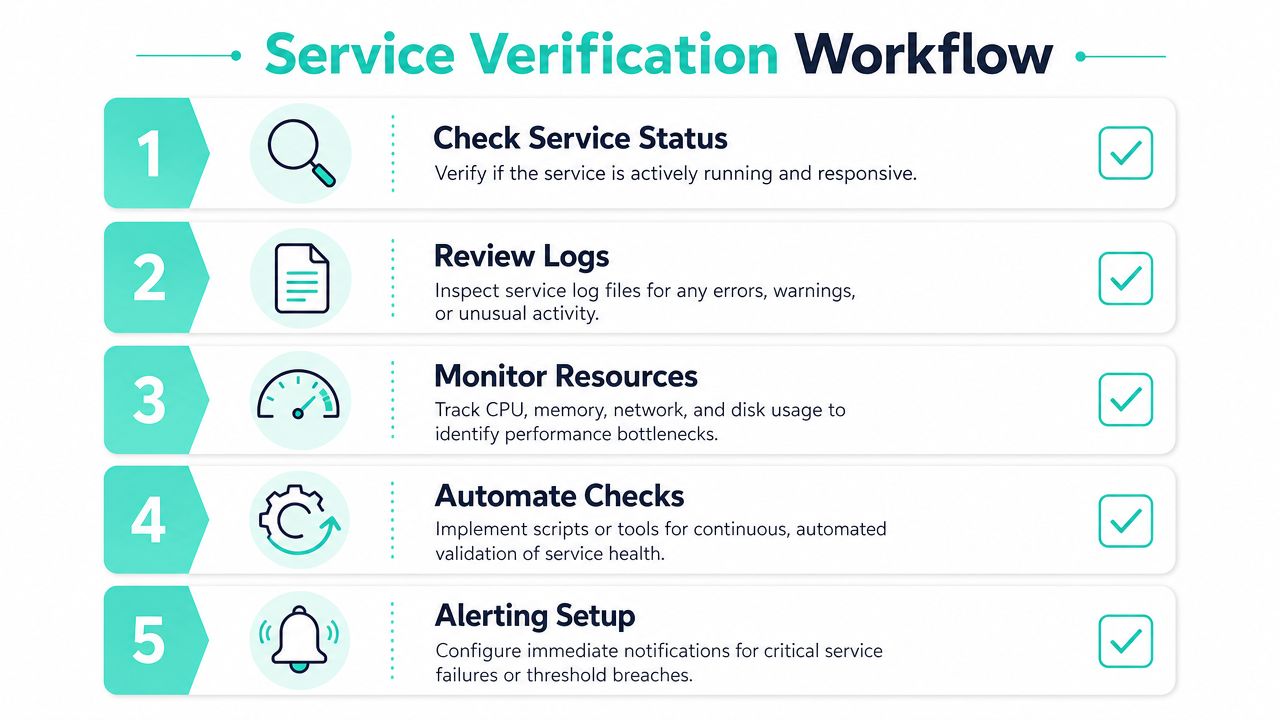
A verification workflow that works across platforms
Keep the process simple and consistent:
- Check service state
- Review recent logs
- Confirm dependency health
- Validate the application behavior
- Automate the check if it matters twice
The first command differs by platform:
- Windows with
sc query "SERVICE-NAME"orGet-Service -Name "SERVICE-NAME" - Linux with
systemctl status <service> - Docker with
docker ps - macOS with
launchctl list
That sequence matters more than the individual tool. Teams lose time when they stop at "it says running" and don't verify the application path that business users depend on.
Logs tell you why the start failed
Use platform-native logging before you invent theories.
On Windows:
Get-WinEvent -LogName System -MaxEvents 50On Linux:
journalctl -u nginxjournalctl -u solrWith Docker:
docker logs solrdocker logs cmThese commands give you the first useful signal. Missing dependencies, permission problems, bad config, timeouts, and startup exceptions usually show up there before they show up anywhere else.
Check the log closest to the service first. It usually tells you more than the application dashboard.
For broader operational maturity, service validation should connect to uptime and health monitoring instead of living as an isolated admin habit. A practical starting point is to align command-line checks with broader website uptime monitoring, so failures become visible before users file tickets.
Automate the boring checks
Manual checks are fine during an incident. They don't scale well as an operating model.
A lightweight script can:
- Query status after a restart
- Wait briefly and re-check
- Collect a recent log excerpt
- Exit with a failure code for schedulers or pipelines
- Notify operators when the service doesn't recover
That pattern fits scheduled tasks on Windows, cron-based checks on Linux, and CI/CD guardrails during deployments. It also overlaps with security operations, where automation reduces the time spent repeating the same verification loop. This article on mastering security automation for SOC teams is useful reading if you're thinking beyond uptime into operational response discipline.
Troubleshooting Common Command Line Service Failures
Most failed starts fall into a short list of causes. The syntax is fine. The service still doesn't come up. That's usually permissions, the wrong service name, a disabled startup type, a dependency issue, or a process that hangs during initialization.
Permission and naming mistakes
Start with the simple checks.
If Windows returns access denied, open Command Prompt or PowerShell as Administrator. If Linux or macOS rejects the action, retry with sudo if your operational model allows it. A surprising number of "service won't start" incidents aren't platform problems at all. They're shell privilege problems.
The second common mistake is using the display name instead of the service's internal name. Services.msc may show a friendly label, but the shell command often needs the internal name. Query first, then act.
Useful checks:
- Windows.
sc queryorGet-Service - Linux.
systemctl list-units --type=service - Docker.
docker compose ps - macOS.
launchctl list
When the issue looks network-related rather than service-related, inspect active listeners and connection state before restarting blindly. A practical guide to master netstat -a for hosting can help confirm whether the process is binding as expected.
For wider visibility during repeated incidents, it's also smart to pair service troubleshooting with proper host and platform observability. These top tools for on-premises infrastructure monitoring are a good reference point for building that layer.
Disabled services and hanging startups
One failure pattern many basic guides skip is startup type.
Microsoft's Start-Service documentation makes the limitation clear. A Windows service can only be started if it is set to Manual, Automatic, or Automatic (Delayed Start). If the service is Disabled, the command won't work, even when the syntax is correct, as documented in Microsoft's Start-Service reference.
If you suspect that's the problem, inspect startup type first. Then change policy before retrying. In practice, administrators often correct the startup mode and only then run the start command again.
Another ugly case is the service that sits in a starting state and never becomes useful. That usually points to one of these:
- Dependency not ready. Database, search, or another required component isn't available yet.
- Heavy initialization. The service is doing too much work during startup.
- Bad configuration. The process launches, then stalls on invalid settings or missing resources.
When that happens, don't keep hammering restart. Check status, inspect logs, verify dependencies, and only then decide whether the service itself is the problem.
If your team is running complex Sitecore AI, SharePoint, or broader DXP estates and you need help with service reliability, upgrades, automation, or 24/7 operational support, Kogifi works with enterprise organizations that need experienced hands on both the platform and infrastructure side.