



You've probably just done something routine that should have been low risk. Export a Sitecore media library. Download a SharePoint document set for legal review. Pull a backup bundle from a content environment before a release. Then Windows throws the same unhelpful message: The compressed (zipped) folder is invalid.
In enterprise delivery, that error rarely shows up at a convenient time. It appears when content editors are waiting on migration files, when infrastructure teams are validating backups, or when a DXP program is moving assets between environments under deadline. The worst part is that the message sounds final, as if the archive is broken beyond use. Often, it isn't.
What matters is separating true archive corruption from tooling and platform limits. That distinction changes the fix, the owner, and the escalation path.
Table of Contents
- Start with the extraction tool, not the archive
- Common ZIP Error Causes and First-Step Solutions
- What to check in Sitecore and SharePoint workflows
- Use archive repair before manual recovery
- Validate integrity with checksums and source comparison
- When the payload is only partially recoverable
Beyond the Invalid Folder Message
A compressed zip folder error often gets treated like a dead file. That's the wrong starting point. In many enterprise environments, the archive is usable, but the default handler on the user's machine can't process it reliably.
The ZIP format has been around a long time. One reason this error still causes confusion is historical baggage. The original ZIP specification dates to 1989, and Windows later added native ZIP support into Explorer, which means modern users still run into failures when older shell behavior collides with large, complex, or partially corrupted archives, as noted in this explanation of ZIP compatibility limits.
Why this error is more ambiguous than it looks
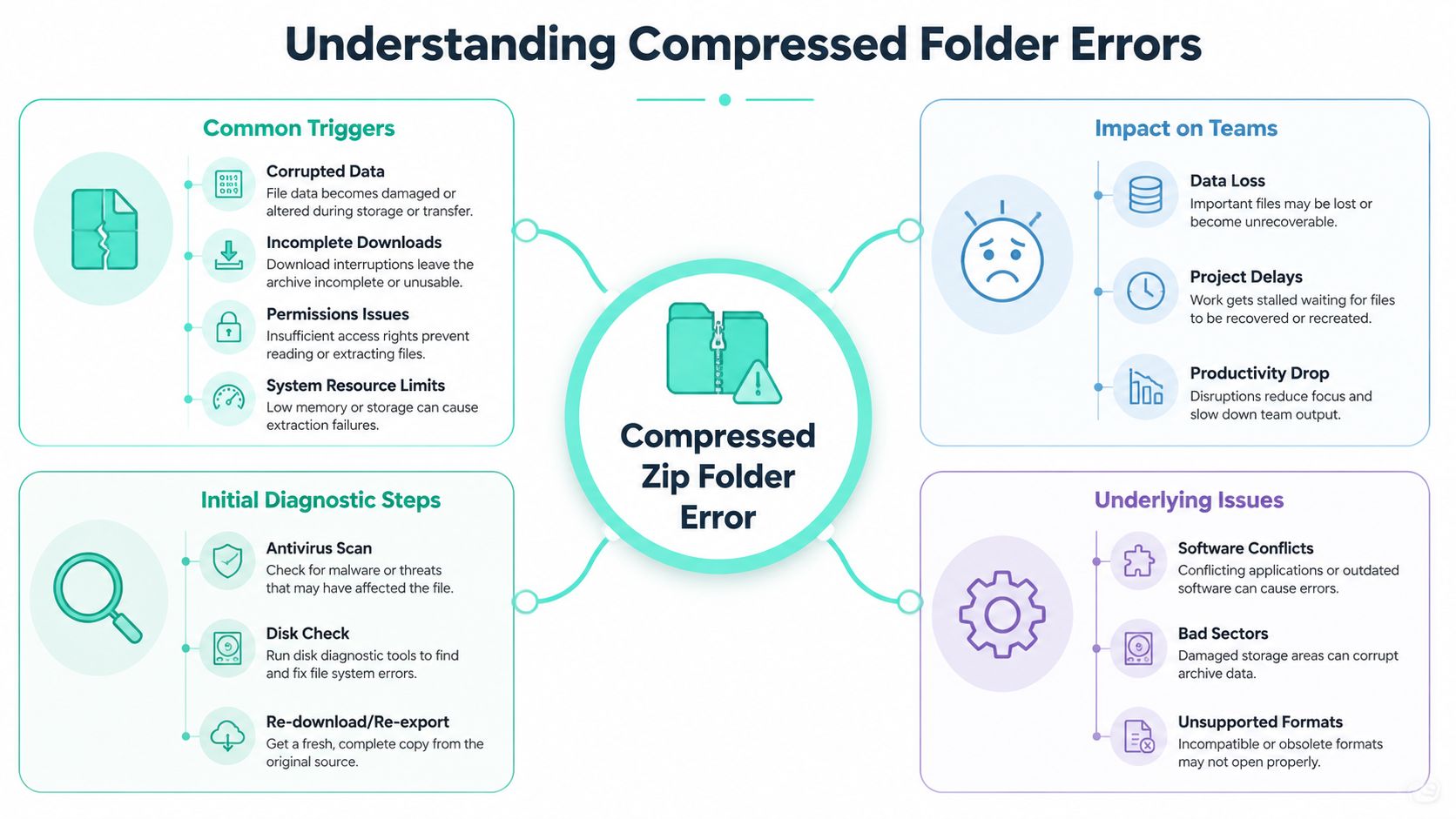
In practice, the same message can mean several very different things. The file may be incomplete because a browser interrupted the download. Windows Explorer may be choking on archive scale. Permissions on the destination path may block extraction. NTFS behavior can also interfere in ways that look like corruption to the end user.
That's why generic advice like “download it again” or “restart Explorer” only helps sometimes. In DXP estates, the archive is often the output of a real business process. A Sitecore content package, a media export, a search index backup, or a SharePoint repository handoff can all produce archives that are technically valid but operationally awkward.
Practical rule: Treat the error message as a symptom, not a diagnosis.
Why enterprise platforms hit this problem more often
Sitecore and SharePoint environments generate exactly the kind of archives that stress weak ZIP handlers. They produce lots of small files, nested structures, multilingual assets, and content exports assembled by different services and tools. That combination is common in migration work, content auditing, AI enrichment pipelines, and DAM-related workflows.
If your organization is already handling media-heavy content operations, the broader storage pattern matters too. Teams working through cloud-based asset estates often run into transfer and packaging friction long before they find the root cause in extraction tooling. That's one reason disciplined content operations matter as much as archive repair, especially in cloud digital asset management workflows.
The useful mental shift is simple. Don't ask only, “Is this ZIP broken?” Ask, “Which layer failed?” The archive, the transfer, the file system, the permissions model, or the extraction tool can all produce the same compressed zip folder error.
Diagnosing the Root Cause of Your ZIP Error
The fastest way to solve this problem is to stop guessing. A compressed zip folder error usually becomes manageable once you identify which layer is failing.
Start with the extraction tool, not the archive
Windows Explorer's built-in ZIP handler has a documented failure mode on large archives. Autodesk documents the error “Windows cannot open the folder. The compressed (zipped) folder is invalid” when extracting ZIPs with more than 15,000 files in Autodesk Construction Cloud exports, which shows a practical threshold where Explorer becomes unreliable for enterprise-scale archives in Autodesk's support article on large ZIP extraction failures.
That matters well beyond Autodesk. Sitecore media exports, package archives, and content snapshots can hit similar patterns. SharePoint document libraries can do the same, especially when teams bundle a broad folder tree for offline review or migration validation.
Before you assume corruption, test a different extractor. If 7-Zip or WinRAR can read the archive listing, you're probably not dealing with a fundamentally invalid ZIP file.
Common ZIP Error Causes and First-Step Solutions
| Symptom | Likely Cause | Initial Fix |
|---|---|---|
| Explorer says the compressed folder is invalid, but the file downloaded successfully | Windows ZIP handler limitation | Open with 7-Zip or WinRAR instead of Explorer |
| Archive opens in one tool but not another | Tool compatibility issue | Standardize on one archive tool for extraction and validation |
| Extraction fails only in one location | Permission or filesystem constraint | Copy the ZIP to a local writable folder and extract there |
| Downloaded ZIP won't open and file size looks suspicious | Incomplete download or truncated transfer | Re-download or re-export the archive |
| Archive structure opens, but some files fail later | Partial corruption in payload | Run repair in WinRAR, then verify critical files manually |
| Large export fails during team handoff | Workflow scale issue | Split export into smaller batches if your source platform allows it |
What to check in Sitecore and SharePoint workflows
In Sitecore projects, I'd check the export origin first. Was the ZIP produced by a package process, a custom PowerShell script, a content migration routine, or a cloud handoff job? Those paths don't fail the same way. A manually assembled archive from multiple temp folders is more suspect than a repeatable export generated by a controlled job.
For SharePoint, check whether the issue started at packaging time or download time. Teams often assume the document set itself is damaged, when the actual problem is a browser-mediated download, a local sync issue, or an extraction attempt into a restricted path.
A simple operational check helps. Try the archive on another workstation and in another extraction tool. If the result changes, you're dealing with environment behavior, not just file integrity. That's the kind of issue that can hide in endpoint monitoring data, which is why observability matters in content operations and delivery pipelines, especially when teams already use real user monitoring practices to separate infrastructure problems from user-side failures.
If the same ZIP behaves differently across tools or machines, stop calling it corruption until proven otherwise.
Immediate Fixes Using GUI Tools
Most business users don't need a shell prompt to fix a compressed zip folder error. They need a reliable path that works in minutes.
Replace Explorer first
The first fix is usually the best one. Don't double-click the ZIP in Windows Explorer. Right-click it and open it with a dedicated archive tool instead.
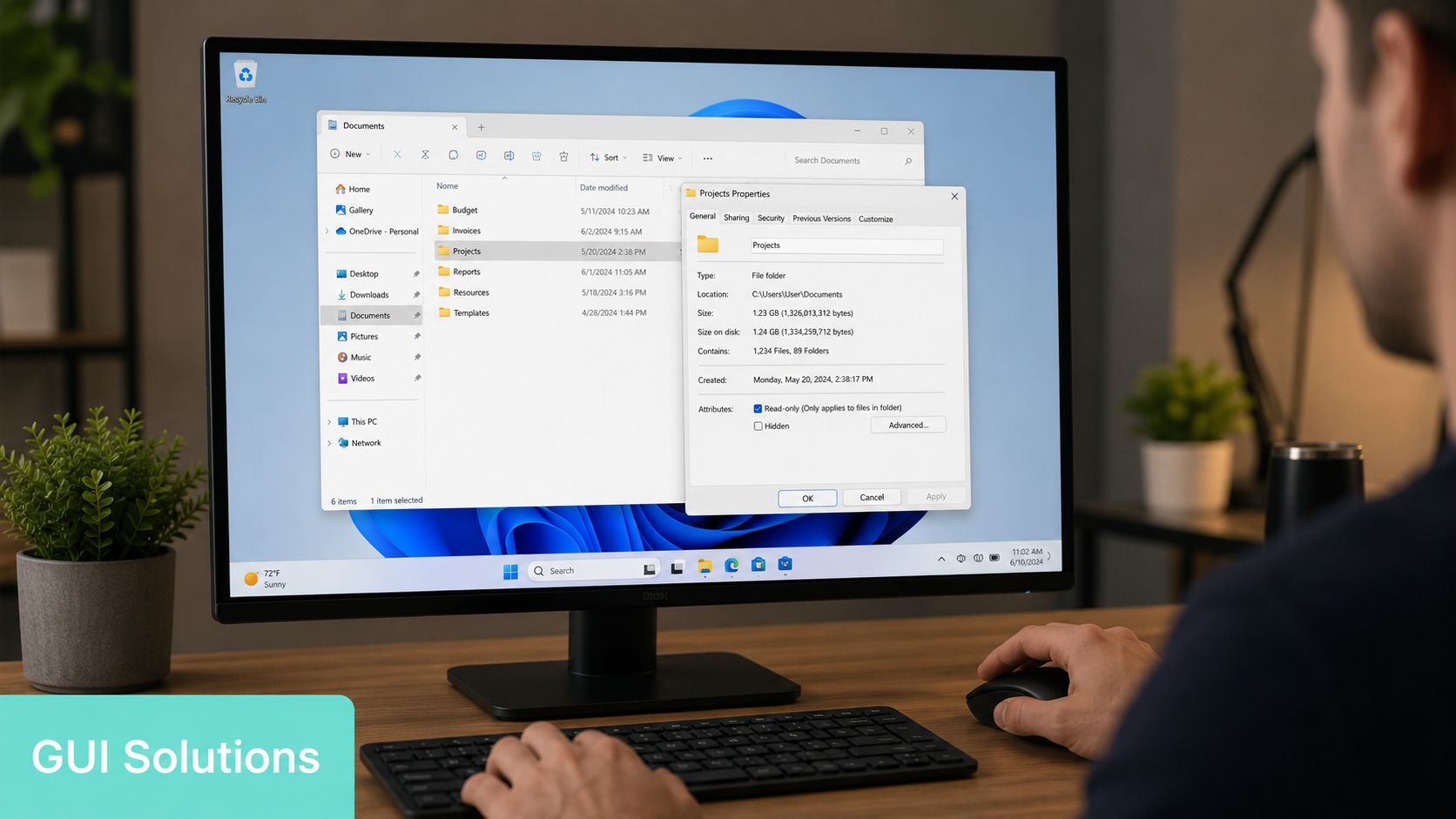
Aarnet's CloudStor support notes that users are more likely to see the error when downloading large file sets and specifically recommends switching to 7-Zip, which indicates the default Windows handler can fail even when the source data is still usable, as described in Aarnet's guidance for large downloaded ZIP sets.
That recommendation aligns with what many enterprise teams already see in practice. Explorer is convenient. It isn't the strongest option for edge cases.
A practical GUI recovery sequence
Use this order. It avoids wasted motion.
- Move the ZIP locally. Copy it to a short, simple folder path such as a desktop or working directory where you know you have write access.
- Try 7-Zip first. Right-click the file and choose the 7-Zip extraction option.
- If the file lists but won't extract cleanly, try opening it in WinRAR.
- If WinRAR opens it, run the repair function covered in the next section.
- If neither tool can read the archive structure, go back to the source and re-download or re-export.
For non-technical users, that sequence solves a surprising number of incidents because it changes both the handler and the extraction path.
What usually doesn't work: repeating the same failed double-click in Explorer after rebooting the machine.
If you need a visual walkthrough before handing this process to less technical colleagues, this quick video is a useful companion:
GUI tools are especially useful in mixed teams. A Sitecore product owner, content lead, or SharePoint administrator may not be comfortable with command-line recovery, but they can still test the archive intelligently. In support models where you want to reduce avoidable tickets, that matters.
A second practical tip is to extract into a new empty folder every time. Don't point the extraction at a folder that already contains partial output from a failed attempt. That creates confusion fast, especially when teams are checking whether a media library or document set is complete.
Advanced Command-Line and Scripting Solutions
When ZIP handling is part of a deployment, migration, or backup process, GUI fixes aren't enough. You need commands that are testable, repeatable, and suitable for automation.
Test before you extract
On Linux and macOS, unzip is still useful for triage because it lets you inspect or test archives without relying on a desktop shell.
A practical pattern looks like this:
- Test archive integrity: use
unzip -t yourfile.zip - List contents without extracting: use
unzip -l yourfile.zip - Attempt recovery on damaged input: use
unzip -FF yourfile.zip
Those commands won't solve every failure, but they tell you whether the archive has readable structure. That's valuable in pipeline work, where you want a script to fail early with a meaningful log entry rather than leave a half-extracted backup in place.

PowerShell for repeatable handling
In Windows-centric enterprises, PowerShell gives you a cleaner operational model than manual Explorer extraction. Expand-Archive is the obvious starting point for routine ZIP handling in scripts, scheduled jobs, and runbooks.
Typical uses include:
- Controlled extraction paths so the script always writes to a known working folder.
- Pre-flight checks for destination existence and write access.
- Logging that records when extraction began, where it wrote files, and whether cleanup completed.
- Fallback logic that hands off to a dedicated tool when the built-in cmdlet isn't enough.
This matters in Sitecore estates because ZIP handling often sits inside larger automation. Teams package serialized items, move assets between lower environments, or archive deployment artifacts before release work. In SharePoint projects, scripted extraction can support migration staging, document transformation, or validation jobs.
If you're building repeatable admin tasks, it helps to keep them in proper operational scripts rather than one-off desktop habits. A solid starting point is a set of maintainable PowerShell scripting practices for enterprise operations.
When scripting is the safer choice
Scripting becomes the better option when human inconsistency is the main risk.
A content operations team might extract a Sitecore asset bundle into the wrong folder, overwrite previous output, or validate the wrong version of an archive. A script can force the correct path, naming convention, and post-extraction checks. It also creates evidence. That matters when a release manager asks whether the archive failed because of corruption, destination permissions, or operator error.
Automate ZIP handling whenever the archive is part of a repeatable delivery process, not a one-time desktop task.
One caution. Command-line extraction isn't magic. If the archive itself is damaged, scripting only gives you cleaner failure and faster diagnosis. That's still worth a lot.
Deep Archive Recovery and Repair Techniques
Some archives are damaged. At that point, the job shifts from extraction to salvage.
Use archive repair before manual recovery
A common repair workflow is to open the problematic ZIP in WinRAR, then select Tools → Repair archive, and make sure Treat the corrupt archive as ZIP is checked. This process can often rebuild the archive structure even if some contained data remains lost, as shown in this WinRAR repair walkthrough.
That distinction matters. Structure recovery and payload recovery aren't the same thing. You may get a new archive that opens properly, while a subset of files inside still fails validation or won't render correctly.
In practical terms, use repair when:
- The archive opens partially and you can see at least some file listing.
- The original source is slow to recreate, such as a long-running export from a CMS or collaboration platform.
- You only need critical files, not every single file in the package.
If the repaired archive opens, extract it to a clean folder and validate the business-critical payload first. In Sitecore work, that may be media assets, package manifests, serialized items, or export metadata. In SharePoint, prioritize legal records, approval documents, and version-sensitive content.
Validate integrity with checksums and source comparison
Checksums are the cleanest way to separate transfer failure from post-download suspicion. If the sender provides a hash and your local file doesn't match, stop troubleshooting extraction and get a clean copy. If the hash matches but Explorer still fails, the archive is more likely hitting a tooling or environment issue.
Not every business workflow publishes checksums, but internal platform teams should. They're especially valuable for handoffs between infrastructure, application support, and digital teams because they eliminate guesswork. A checksum gives all sides a common fact.
If the source system can generate the export again, compare outcomes:
- Re-export to a different destination
- Re-download with a different browser or transfer path
- Compare archive behavior in 7-Zip or WinRAR
- Compare file listings before extraction
When repeated exports fail in the same way, investigate the producing process instead of the receiving machine.
When the payload is only partially recoverable
Sometimes repair gives you enough to move forward, but not enough to trust the entire archive. That's common with interrupted transfers and damaged media-heavy packages.
At that point, don't hand the archive back to users as “fixed.” Treat it as a recovery artifact. Pull out the files you can verify, document what failed, and decide whether business continuity requires a partial restore or a full regeneration from source. For critical production content or broken migration sets, that's usually the point where teams need structured application and recovery support such as enterprise bug fixing and recovery services.
A repaired ZIP is evidence of progress, not proof that every file inside is healthy.
Enterprise Best Practices for Preventing ZIP Errors
The right long-term move is to stop treating compressed zip folder errors as random desktop annoyances. In enterprise delivery, they're predictable byproducts of weak packaging standards, inconsistent tools, and export workflows designed without the receiver in mind.
Design exports for the receiver, not just the sender
A Sitecore team may be able to produce a massive archive from a content or asset process, but that doesn't mean a business user should consume it through Explorer on a standard workstation. SharePoint teams hit the same problem when they bundle large document trees for easy download without considering extraction behavior downstream.
Prevention starts with packaging discipline:
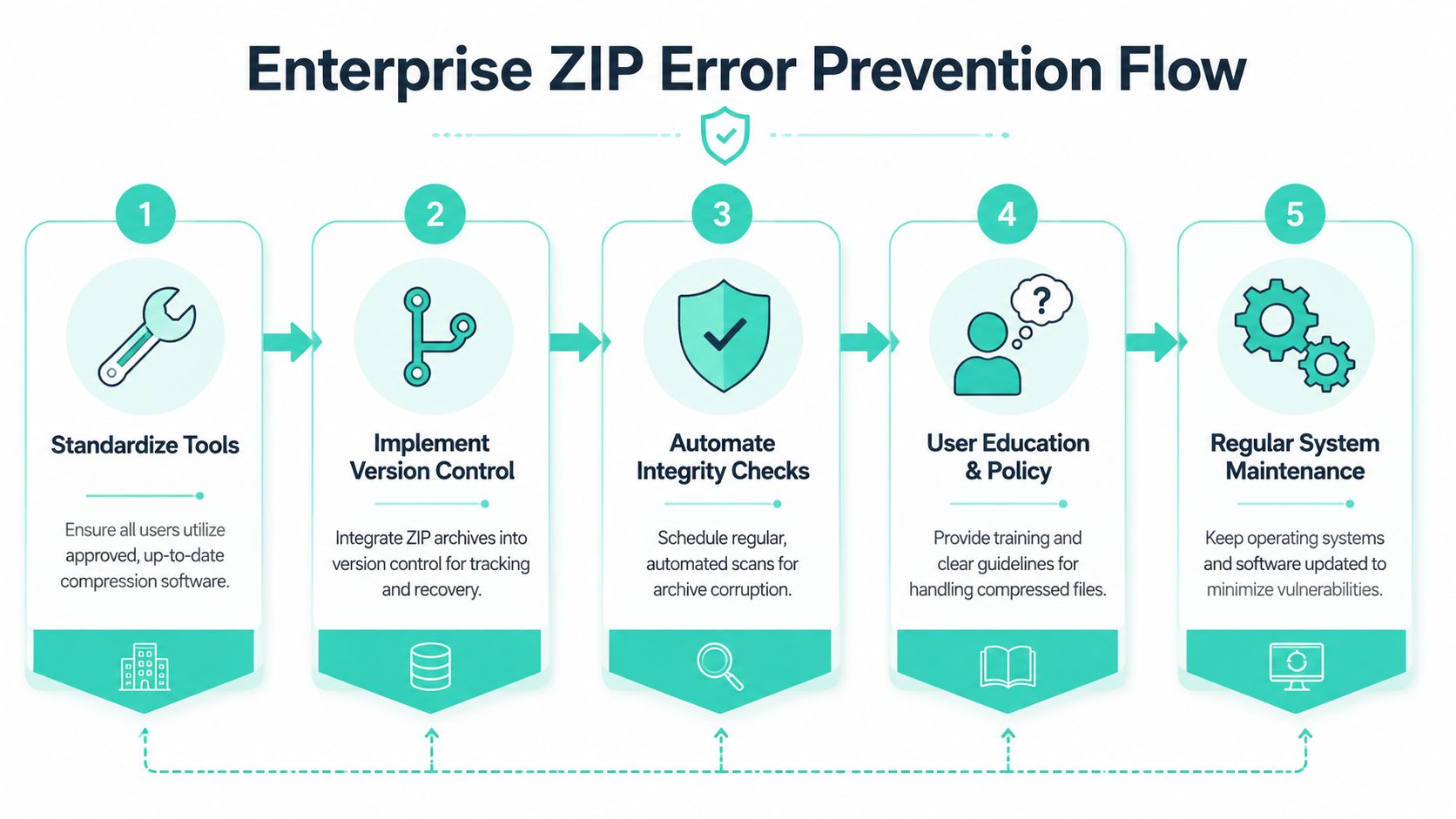
- Standardize extraction tools across support, operations, and business users.
- Prefer smaller export batches when your platform allows it.
- Separate critical manifests from bulk payloads so teams can validate structure early.
- Publish checksums for handoffs between teams or environments.
- Use controlled server-to-server packaging formats where compatibility is known and managed.
Turn ZIP handling into policy
Most recurring ZIP incidents aren't technical mysteries. They're governance failures. One team uses Explorer. Another uses 7-Zip. A third exports directly from a browser download without validation. Nobody publishes checksum values. Support gets the ticket only after a failed release or delayed content handoff.
That's avoidable.
Write down a simple policy for content exports, backup bundles, migration packages, and vendor handoffs. Define the approved archive tools. Define where archives should be extracted. Define when to repair versus re-export. Define who owns validation. For organizations investing heavily in Sitecore AI, personalization pipelines, and complex content supply chains, this kind of operational clarity prevents minor archive issues from interrupting much larger programs.
The best teams engineer this away. They don't wait for users to discover tool limitations one incident at a time.
If your team is dealing with recurring archive failures in Sitecore, SharePoint, or broader DXP delivery workflows, Kogifi can help you stabilize the underlying process. That includes platform audits, recovery work, workflow hardening, and enterprise support that keeps content operations moving when exports, migrations, or backups start failing at the worst possible moment.