


You're usually not looking up how to copy a file out of a container on a calm day. It happens when a Sitecore CM container produced a log you need before the next deployment rolls in, when a SharePoint integration job dropped a report inside a transient worker, or when a local DXP stack failed and the only useful evidence is still sitting in the container filesystem.
That's why this topic matters more in enterprise projects than it does in toy examples. In real delivery work, teams need to pull out startup logs, generated packages, media-processing output, serialized items, search diagnostics, and one-off artifacts without stopping everything to redesign the environment. For that moment, Docker CP is usually the fastest path.
It's also not the whole story. If you're doing the same extraction every sprint, every build, or every environment refresh, docker cp is usually the wrong long-term answer. Bind mounts, named volumes, and build-stage export patterns fit those workflows better. If your team is still debating orchestration boundaries around local development and deployment packaging, this practical comparison of Docker Compose vs Kubernetes helps frame where file movement belongs in the wider platform design.
Table of Contents
Introduction
A common DXP debugging pattern looks like this. A Sitecore role starts, throws errors, and exits before anyone can inspect the working directory. The application image is intact, the infrastructure looks fine, but the one generated file that explains the failure lives inside the container's writable layer.
That's where people often overcomplicate things. They start rebuilding images, changing Compose files, or opening shells into containers they don't need to keep alive. For simple extraction, you usually just need the right path and one command.
The practical tool is docker cp. It's the standard command for copying files or directories between a container and the local filesystem, and it works even when the container is stopped, as documented in this guide to copying files from a Docker container to a host. That matters for post-failure analysis, especially in local Sitecore topologies where a role may terminate before you can attach and inspect it interactively.
Practical rule: Use
docker cpwhen you need a file now. Use mounts or build-stage export when you need the same file every time.
For SharePoint-related container work, the same rule applies. If you're extracting a generated migration log, a transformed document package, or a test report from an integration helper container, docker cp is clean and low-friction. If that export is part of an expected workflow, wire it into the environment instead of treating it as an incident-time maneuver.
The Direct Approach Using Docker CP
docker cp is the shortest path from “the file is trapped inside the container” to “the file is on the host and ready to inspect.” Use it for incident-time extraction, not as a standing file delivery pattern. In DXP environments, that distinction matters. Pulling one failed Sitecore indexing log or one SharePoint integration output is a good fit for docker cp. Exporting the same artifacts every run belongs in a volume or bind mount.
The command format is straightforward:
docker cp <container>:<src_path> <dest_path>
The source path is read from the container filesystem. The destination path is on the host and can be relative or absolute.
Find the right container first
Container names get messy quickly in local enterprise stacks. A Sitecore setup might have CM, CD, xConnect, Solr, and helper containers. A SharePoint-related development workflow might add migration workers, package builders, or test harness jobs. Before copying anything, confirm the exact container name or ID:
docker psdocker ps -aUse docker ps for running containers. Use docker ps -a when the process has already exited but the writable layer still contains the file you need.
docker cp works well here because it does not require you to open an interactive shell just to retrieve a file. It can copy a single file or a full directory tree, and it also works against stopped containers. That makes it a practical debugging command for post-failure analysis.
Use Docker CP for files, folders, and renamed exports
These are the patterns that show up often in delivery teams.
Copy a single file out of a container
docker cp sitecore-cm:/var/log/sitecore/log.123.txt ./log.123.txtUse this when you know the exact path and want the file locally with minimal friction.
Copy a directory of generated artifacts
docker cp reporting-worker:/app/output/reports ./reportsThis works well for report bundles, package outputs, or serialized items generated during a one-off job.
Rename the file as you export it
docker cp sharepoint-sync:/app/logs/run.log ./sharepoint-sync-run.logRenaming during export keeps the host workspace readable, especially when several containers produce generic filenames such as run.log, stdout.log, or export.json.
A short video walkthrough can help if you prefer seeing the command flow in action.
Pulling a file with
docker cpis often safer than opening a shell and poking around inside the container. It keeps the debugging task narrow and avoids accidental changes during investigation.
One design check is worth making before you normalize this command in team docs. If developers are copying the same output from the same container every day, the workflow is probably modeled at the wrong layer. Runtime artifact sharing usually belongs in Compose, mounts, or a dedicated output path, while image construction belongs in the Dockerfile. This comparison of Docker Compose and Dockerfile responsibilities is useful when deciding where that boundary should sit.
Choosing the Right Method for Your Workflow
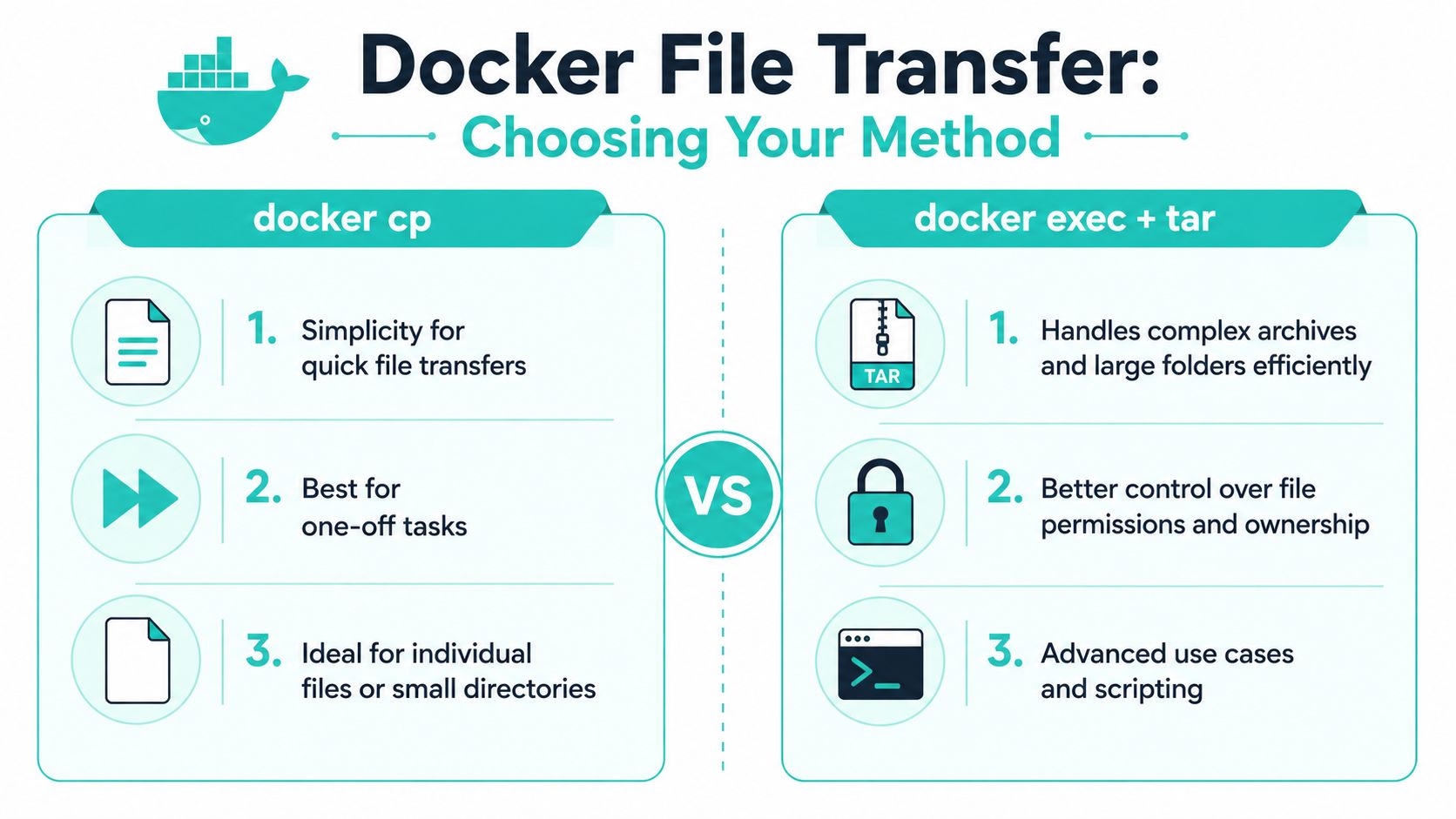
A lot of container pain comes from using the right command in the wrong workflow. docker cp is strong for ad hoc extraction. It's weak as a habitual artifact-delivery mechanism.
When Docker CP is the right answer
Use docker cp when the file exists because of a specific event. A failed content indexing job. A one-time package generated during a Sitecore deployment rehearsal. A SharePoint connector trace file from a local test run. In those moments, you're extracting evidence or an artifact after the fact.
Use a bind mount or volume when file handoff is expected, repeated, or part of normal developer experience. If frontend build output, package exports, or serialization assets need to appear outside the container every run, let the runtime map that directory deliberately.
A practical expert-level pitfall is choosing docker cp when the artifact is generated repeatedly or needs deterministic handoff. Community guidance recommends bind-mounting a host directory or using multi-stage builds for repeatable artifact export because docker cp is best for one-off extraction, while mounts and build-time COPY avoid the extra extraction step and are generally more reliable for CI/CD pipelines that need predictable artifact flow, as discussed in this Docker community thread on copy strategies.
Docker CP vs. Volumes When to Use Which
| Criteria | docker cp | Bind Mounts / Volumes |
|---|---|---|
| Best fit | Ad hoc debugging and one-time extraction | Repeatable development and persistent file sharing |
| Timing | After the file already exists in the container | During container runtime by design |
| Operational style | Manual and targeted | Planned and environment-driven |
| Good examples | Pulling Sitecore logs, grabbing generated reports, extracting crash artifacts | Sharing source code, persisting uploads, exposing build output |
| CI/CD suitability | Limited for deterministic artifact flow | Better for repeatable pipeline behavior |
| Setup effort | Low | Higher upfront, lower ongoing friction |
For DXP teams, the choice usually maps cleanly to the use case:
- Debug sessions work best with
docker cp. You don't want to redesign a Compose stack just to retrieve one failed Solr-related log or one generated diagnostics bundle. - Local development usually wants bind mounts. If your Sitecore rendering host or integration helper needs file visibility every run, a mount removes the manual step.
- Persistent application data belongs in volumes, not in copy commands.
- Build outputs should be exported intentionally. If a pipeline expects them, don't depend on someone remembering a follow-up copy command.
The strategic point is simple. Docker copy file from container to host is a good troubleshooting move. It's usually a poor contract between stages of a repeatable system.
Advanced Extraction with Docker Exec and Tar
When docker cp feels too blunt, use docker exec with tar. This pattern is useful when you want more control over how a directory is packed and unpacked, especially for larger folder trees or cases where you care about structure and metadata handling.

Why tar helps in complex exports
In CMS and DXP environments, this usually comes up with media exports, generated bundles, cache snapshots, or nested processing output. A plain docker cp call is often enough, but a tar stream gives you a more script-friendly path when you need to package a directory in one shot.
This is also a useful pattern when the container has shell tools available and you want to inspect or package content before it reaches the host. For teams that spend time inside running containers, these CloudCops insights for platform engineers are a practical companion to the docker exec side of the workflow.
A practical tar pipeline
Here's the pattern:
docker exec sitecore-processing tar cf - /app/output | tar xf - -C ./exportsWhat each piece does:
docker exec sitecore-processingruns a command inside the container.tar cf - /app/outputcreates a tar archive and writes it to standard output.| tar xf - -C ./exportsreads that stream on the host and extracts it into./exports.
That approach works well when you want a single pipeline that can be dropped into a script. It's especially handy for exporting generated assets from service containers used in content processing or migration utilities.
“If the output is large or structurally complex, stream it once and unpack it once.”
One caution. This method assumes the container image includes tar. Many do. Some slim images don't. If your team regularly needs shell-level operations inside service containers, operational consistency matters as much as the command itself. This guide on starting a service from the command line is useful when you're standardizing how local service containers are inspected and managed by engineers across environments.
Common Pitfalls and How to Avoid Them
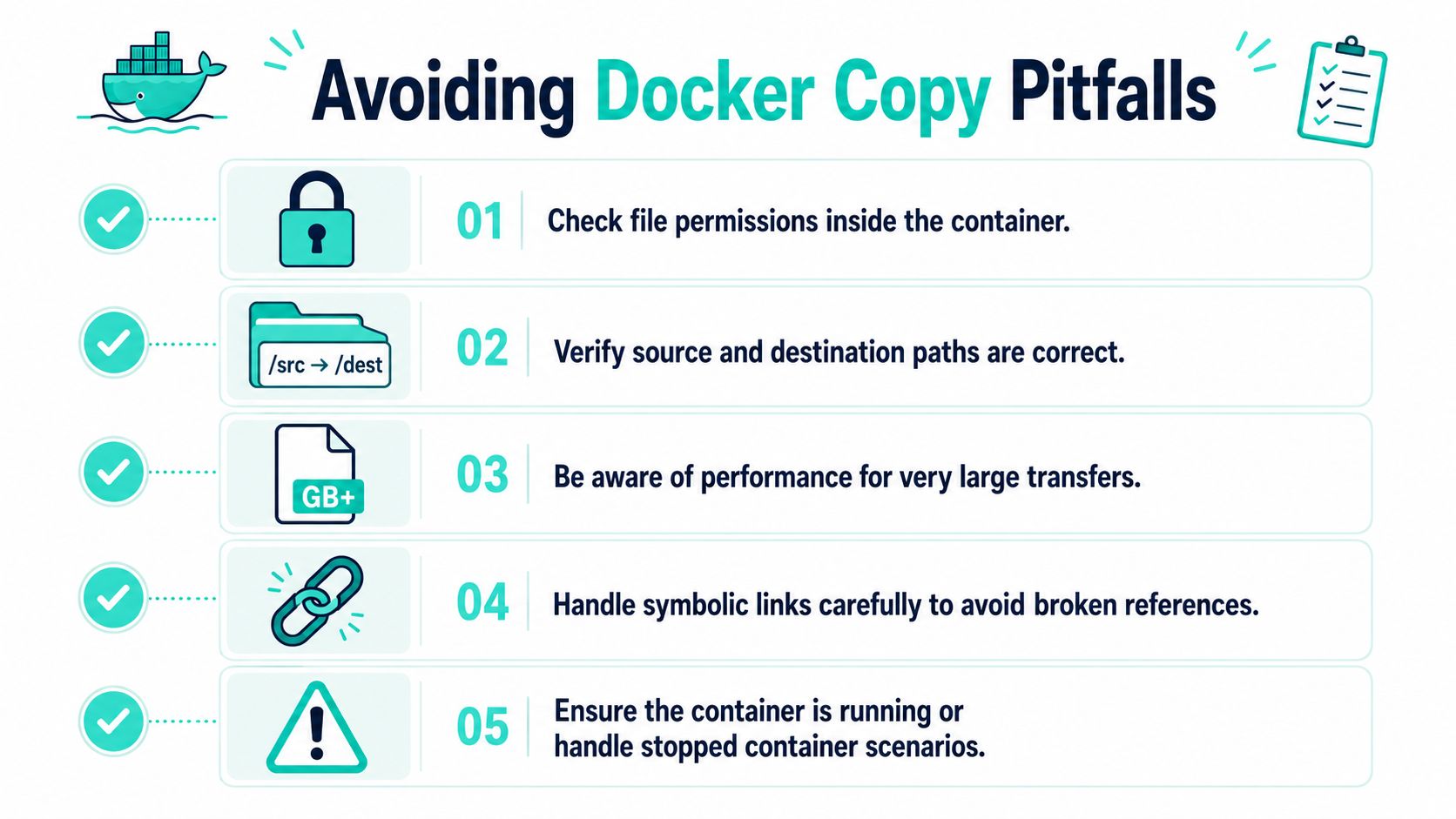
Most docker cp failures aren't Docker bugs. They're path mistakes, ownership mismatches, or assumptions about what the host will receive.
Path mistakes and validation habits
The operational pattern for copying from a running or stopped container is docker cp <container>:<container_path> <host_path>, and a practical way to reduce failed copies is to inspect the path first with docker exec <container> ls -la <path> and check file size with docker exec <container> du -sh <path/file>, as shown in this operational guide to copying files in and out of containers.
That validation habit saves time in a few common scenarios:
- Wrong folder assumptions often happen after image changes. The log file moved from
/app/logsto/var/log/app, but your local note still points to the old path. - Stopped container confusion trips people up because they assume they must restart the container first. You usually don't.
- Large artifact surprises become obvious when you check size before copying and avoid pulling a much larger directory than intended.
Use this sequence when the path is uncertain:
docker exec sitecore-cm ls -la /var/log/sitecoredocker exec sitecore-cm du -sh /var/log/sitecore/log.123.txtdocker cp sitecore-cm:/var/log/sitecore/log.123.txt ./log.123.txtOwnership, size, and host-side surprises
The next problem usually appears after the copy succeeds. You have the file, but your editor, test runner, or local script can't work with it because ownership or permissions don't line up with your host user.
That's common when the container runs as a different user than your workstation. If you regularly run into host-side permission issues after extraction, this article on understanding Errno 13 in cloud environments is a useful refresher on what “permission denied” typically means in practice.
Other pitfalls show up less often but still matter:
- Windows path syntax can be awkward if your shell and Docker path expectations don't match. Keep host destinations explicit and test with a small file first.
- Symbolic links can surprise you if the content behind the link isn't what you expected to copy.
- Copying entire directories casually can clutter your local workspace fast, especially in Sitecore setups where log and data directories get noisy.
Field note: Verify the source path before you copy. Verify the host permissions after you copy.
If your team handles exported artifacts in pipelines, treat those files like any other build output. Keep them versioned where appropriate, traceable where necessary, and outside the realm of tribal knowledge. This guide to version control in CI/CD pipelines best practices is helpful when you're tightening that handoff.
Frequently Asked Questions about Copying Docker Files
Teams usually ask these questions after the first successful copy. The command worked, but now they need to decide whether to keep using docker cp as a one-off fix or move the workflow into something repeatable.
Can I use docker cp with Docker Compose services?
Yes. Compose manages services, but docker cp still targets a specific container. Get the container name with docker ps, then copy from that container.
In a Sitecore or SharePoint stack, this matters because one service can have multiple related containers, and the generated names are not always obvious. Verify the exact source container before you pull logs, package files, or generated config.
What's the best way to handle file ownership after copying to the host?
Fix ownership on the host with your normal local user and group workflow if this is a one-time extraction.
If the same export happens every sprint, every build, or every local environment refresh, stop treating it like ad-hoc debugging. Put that path on a bind mount or named volume and make file ownership part of the setup. That choice saves time, especially in enterprise CMS projects where multiple developers need the same artifact flow to work the same way.
Can I copy files from a container that already stopped?
Yes. That makes docker cp useful for post-failure analysis.
For example, if a content import job crashes after generating partial output, you can still pull the logs or export files from the stopped container and inspect what happened without rebuilding the whole scenario first.
Is there a file size limit?
There is no simple limit that matters more than the shape of the workflow. Small files and targeted directories are usually fine with docker cp. Large exports, database dumps, or bulky media libraries are where the trade-off changes.
For those cases, use a tar-based stream or a mounted volume. It is easier to verify, easier to repeat, and less likely to leave someone manually copying multi-gigabyte artifacts out of a container at the worst possible time.
What if the file is generated during a build rather than normal runtime?
Treat that as a build artifact problem, not a container copy problem. Export it in the build stage, publish it to the expected artifact location, and keep the handoff deterministic.
That same discipline helps with adjacent environment tasks. If your team also needs a clean operational reference for managing MySQL database versions, the principle is the same. Routine outputs and routine checks should follow a defined path, not depend on someone remembering a one-off container command.
If your team is working through Sitecore AI initiatives, SharePoint modernization, containerized CMS operations, or broader DXP architecture decisions, Kogifi can help with implementation, upgrades, audits, and long-term platform support.