


Stop starting with the homepage. That's the most popular advice in SharePoint intranet design, and it's backwards. Employees don't arrive to admire a hero banner or browse news. They arrive to find a policy, submit a form, or check a status, then leave.
Design for that visit and most other decisions get easier. Your navigation, templates, permissions and metadata exist to shorten one task. So does your governance. If those foundations are weak, no theme, icon set or seasonal banner will fix the result, and AI retrieval will only surface the mess faster.
Table of Contents
A Seven-Phase Roadmap for a SharePoint Intranet
Your intranet is now where employees look for policies, forms and help, so a weak build slows every team, not just the team that owns it. In 2024, SWOOP Analytics analyzed more than 94,000 intranet pages, 177,000 employees, and 822 SharePoint sites across 20 organizations worldwide, which shows the operating scale you're designing for even before your own audit begins.
Don't treat that scale as a content migration problem. Treat it as a service. Each phase below answers one question and produces one sign-off output, with typical durations for a mid-size organization of 500 to 2,000 employees.
Seven Phases With Sign-Off Outputs
| Phase | Core question | Sign-off output | Typical duration |
|---|---|---|---|
| Discovery | What tasks do employees perform, and where do they fail? | Task inventory and audience segments | 2 to 4 weeks |
| Information architecture | Where should each task live? | Site map, navigation tree and metadata schema | 2 to 3 weeks |
| UX and UI design | How quickly can a user finish a task? | Clickable prototypes and page templates | 3 to 4 weeks |
| Component strategy | What is configured, what is built with SPFx, and what runs in Power Platform? | Build list with owners | 1 to 2 weeks |
| Governance | Who owns, approves and retires content? | Owner map, decision rights and review calendar | 2 to 3 weeks, runs in parallel |
| Build and test | Does it work for real users, in every language? | Release candidate and accessibility audit | 6 to 10 weeks |
| Rollout and adoption | How do employees learn it and keep using it? | Pilot results, launch plan and metrics baseline | 4 to 8 weeks |
Governance starts in week one. It runs alongside every other phase because owners, permissions and review dates shape the site map and templates. If you appoint owners after build, you'll rebuild pages around people who were never consulted.
I would hold one rule across the roadmap. No build work starts until the previous sign-off output exists, and each phase ends with a named owner who can approve or reject change. A prototype without a task inventory is decoration. A site map without a metadata schema won't support search. A release candidate without an accessibility audit isn't ready.
That discipline looks slower on a project plan. In practice it prevents the expensive loop where a team builds department sites, discovers employees can't find anything, then adds more navigation to compensate.
How to Run Discovery Before Designing Anything
Discovery isn't a workshop where stakeholders vote on homepage widgets. It's evidence gathering. You're building a ranked list of employee tasks, with a baseline you can measure against after launch.
The sequence below gives you that evidence before anyone opens a page editor.
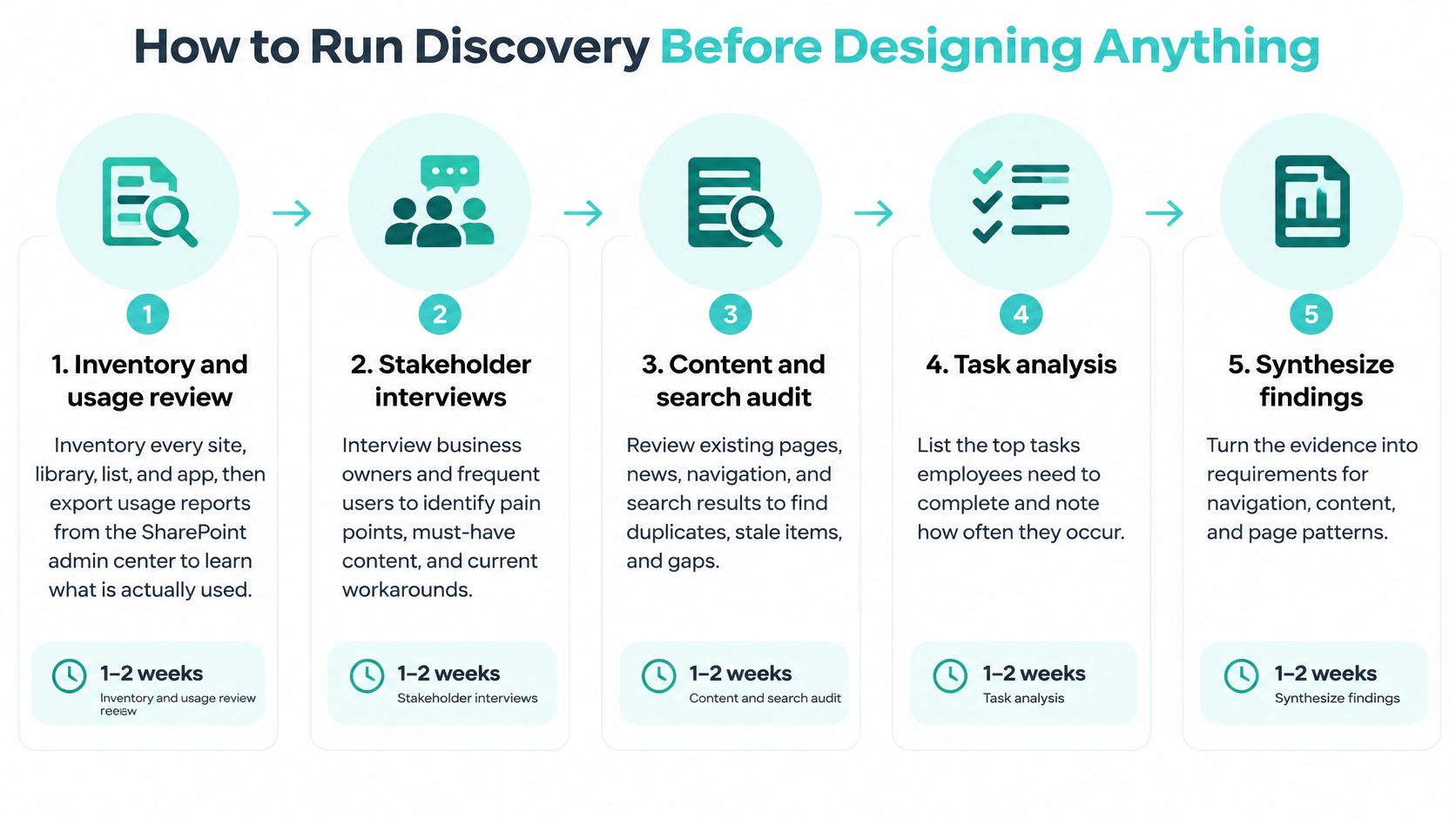
Seven Discovery Steps in Order
- Inventory everything you already have. List every site, library, list and app, then export usage reports from the SharePoint admin center for the last 12 months. You'll find active team sites mixed with abandoned project sites, and you shouldn't migrate both.
- Interview 8 to 12 people for about 30 minutes each. Cover departments, locations and frontline roles. Ask each person for the last three things they tried to finish on the intranet and where they got stuck. Recent failures beat general opinions.
- Pull 90 days of search logs and top pages. List queries that return zero results, queries people refine repeatedly, and pages with high exits. Zero-result terms often reveal the language employees use, which is rarely the language in your policy titles.
- Define 4 to 6 audience segments. Segment by role, site location and working language, not by the org chart alone. A warehouse supervisor and a head office manager may sit in the same department and need completely different shortcuts.
- Rank tasks by frequency and failure rate. Keep the top 15 to 20 tasks as design scope. Everything else goes to a backlog. If you try to design for 200 tasks, you'll design well for none of them.
- Record your baseline. Capture task completion rate, time on task, zero-result rate and content freshness for those top tasks. Without a baseline, launch success becomes an argument about page views.
- Test a prototype before build. Put a paper or clickable prototype in front of five to eight users per segment and watch them work. Fix failed tasks in the prototype, where a change costs minutes.
This sequence matches proven intranet practice. Nielsen Norman Group's intranet research synthesizing 174 best practices from 83 real-world case studies recommends combining observational usability tests, surveys, log analysis, prototype testing and post-launch validation, and benchmarking task completion, time on task, search refinement, zero-result searches and content freshness rather than page views alone.
A structured project discovery process keeps those inputs from turning into competing stakeholder lists. The output you want is one ranked task inventory that IT, internal communications and business owners have all signed.
Expect one uncomfortable finding. The most searched policy often sits three levels deep under a department site nobody visits, while the homepage promotes content nobody searched for.
That's not a search tuning problem. It's an information architecture problem, and discovery is where you catch it cheaply. Convert every failed prototype task into a backlog item with an owner. Don't solve it by adding another menu item, because navigation expansion hides the failure and makes the next task harder to find.
Governance and Content Readiness Before Launch
Governance is usually scheduled last and needed first. In a 2019 survey of 227 organizations, only 30% of SharePoint implementers had an intranet strategy that included governance, while 67.5% had a steering committee or intranet council, usually with six to ten members from IT and internal communications. Having a council without a governance strategy gives you meetings, not decisions.
Set the operating model up in week one, before migration starts.
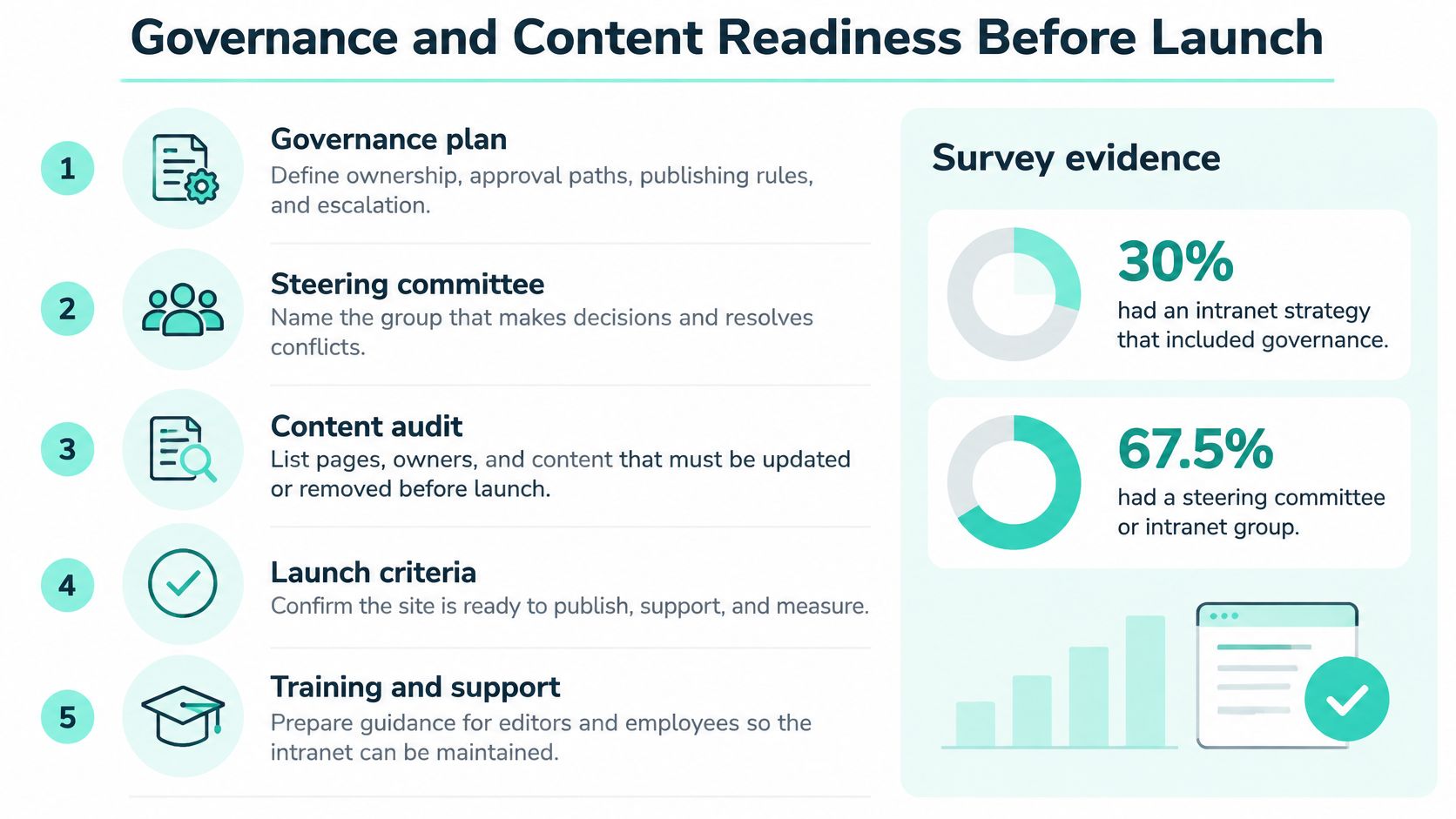
Ownership Setup Before Migration
- Appoint three roles. Name an executive sponsor, a product owner who prioritizes the backlog, and a service owner who runs the platform. One person can't credibly do all three.
- Form a cross-functional council. Map one content owner to each business domain, such as HR, IT, finance and operations. Owners approve content in their domain and own its review date.
- Publish decision rights. Write down who can change taxonomy, navigation, permissions, templates, retention, accessibility standards and change control. Unpublished rights default to whoever shouts loudest.
- Classify every legacy page. Mark each one retain, rewrite, consolidate, archive or delete, with a named owner and review date. HR content needs particular care here, and a clear structure to organise HR records in SharePoint helps owners separate authoritative records from working copies.
- Grant access through groups. Use group-based roles and least privilege, and keep unique permission scopes low. Broad edit rights and item-level permissions create exceptions nobody can audit later.
- Remove duplicates and anonymous ownership. Duplicate policies, stale pages and ownerless content produce conflicting answers in search and in Copilot-style summaries. Delete the conflict, don't label around it.
Sign-Off Checklist
Don't sign off until every page has an owner, every policy has one authoritative version, no site exists outside the approved template set, and the redirect and archive plan is approved. Our detailed guidance on SharePoint Online governance best practices covers how to keep those rules enforceable after launch.
Review quarterly with a sampled content audit. Track owner coverage, pages reviewed on schedule, duplicate-content rate, broken-link rate, permission exceptions and search zero-result rate. If owner coverage drops, stop adding features and fix ownership first. New components on unowned content just publish stale answers faster.
Choosing an Organizational Model and Navigation Structure
Choose the organizational model before drawing the menu. It determines how much structure employees must learn and how easily they can find a task, form, person or tool during a short visit. The linked SWOOP Analytics intranet research reports faster task completion on centralized and hybrid intranets than on distributed ones. The practical point is clear: bring destinations together so employees do not have to guess which department site holds an answer.
Organizational Models Compared By Task Time
| Model | Average task time | What it looks like | Main risk |
|---|---|---|---|
| Centralized | 78 seconds | One home hub, one global navigation and one search box | Central team becomes a publishing bottleneck |
| Hybrid | 84 seconds | Central home plus owned department hubs under shared navigation | Gaps in ownership between hubs |
| Distributed | 123 seconds | Each department runs its own intranet with its own navigation | Duplicate content and fragmented search |
Choose centralized for most mid-size organizations. Use hybrid when departments have publishing capacity and named owners, and when their content needs a distinct home. Distributed models can be easier to agree on because departments retain control, but employees pay for that separation each time they search across sites.
Whichever model you choose, provide one search field that brings content, people and tools together. A sound information architecture organizes destinations around employee tasks, not just reporting lines. That structure also supports governance: assign ownership by hub, keep labels consistent and give each content type a clear place. Clean, well-owned content makes search and AI-generated answers more useful; duplicate or conflicting material makes both harder to trust.
Check platform limits early, but do not treat them as design targets. Microsoft's SharePoint Online limits allow up to 500 child links at each level of site, hub, global and footer navigation, and up to 2,000 lists and libraries in a site collection. These are technical ceilings, not a reason to build a large menu. Plan hub sites around organizational relationships and employee needs before navigation becomes a mega-menu that people struggle to scan.
Multilingual Navigation and Label Testing
For bilingual organizations, build a navigation tree for each language, with the same structure and metadata IDs. Translators should adapt labels, not invent a parallel way of organizing content. Keep layouts and menus aligned, account for right-to-left direction in languages such as Arabic, and place the language switch in the header.
Test proposed labels with a card sort involving at least 15 employees. If more than a third place a label in the wrong group, revise it. Broad terms such as Resources or Support often fail because they could describe almost anything. Prefer labels that name a task or destination clearly, then verify employees interpret them as intended.
Use role-based personalization for shortcuts and news targeting. Role and location can help employees reach relevant content without creating a separate menu for each person. Individual customization adds maintenance and makes navigation harder to test consistently. Keep the shared structure stable, and tailor only the shortcuts that help employees complete their work.
Page Patterns for Quick Tasks and Accessible Layouts
Your homepage is not a destination. A 2025 benchmark analyzing 28 organizations, 238,000 visitors, and 159,601 pages found 93% of employees visited their intranet yet spent fewer than six minutes there per day, typically visiting three times per workday and viewing only slightly more than two pages per visit, with 91% visiting content pages such as policies, procedures and forms compared with 62% visiting news pages.
Design for the micro-visit. Measure task completion speed, search success and clicks to destination, not time on site. Longer sessions usually mean people are lost.
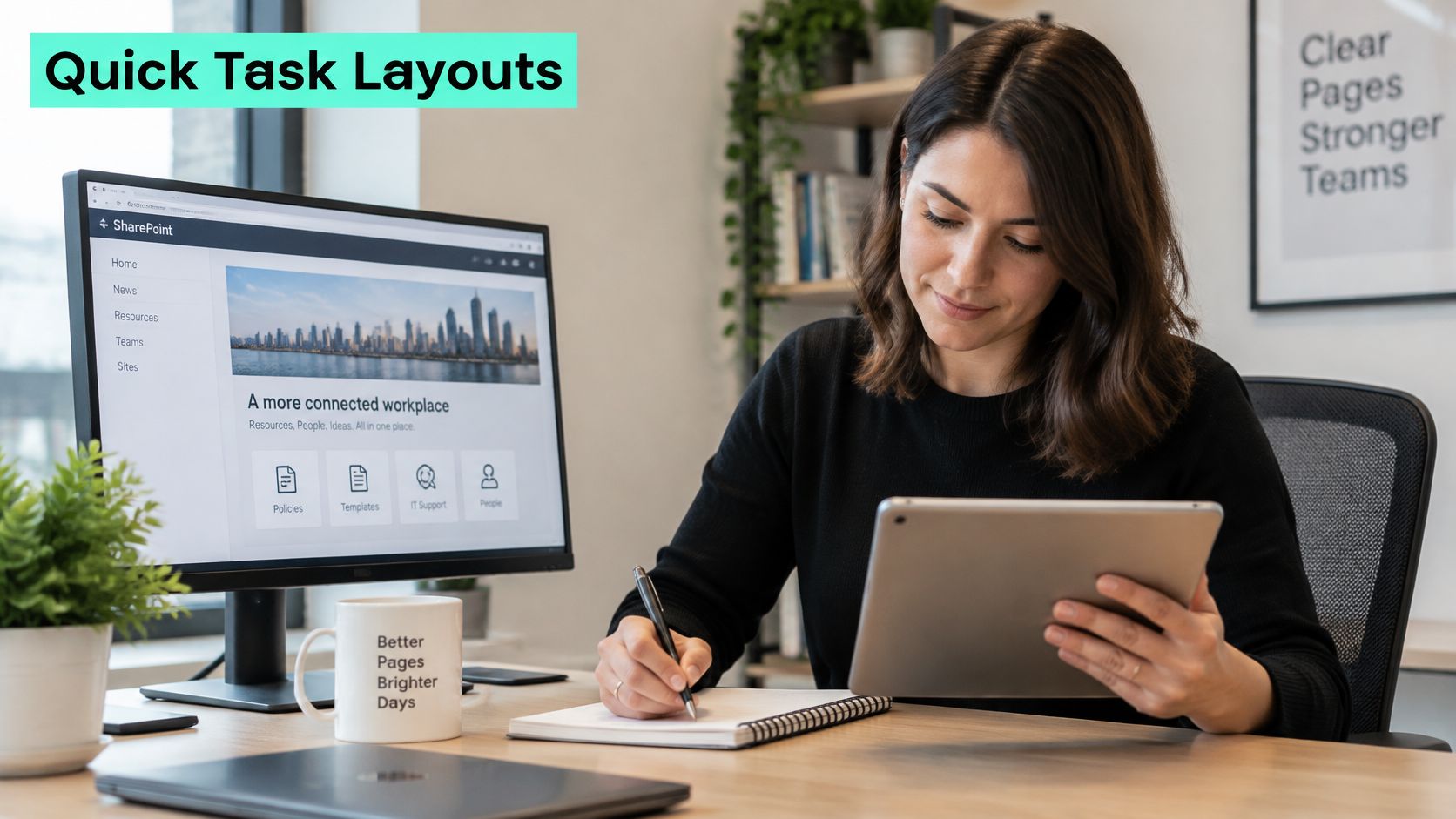
The workspace below shows what you're designing for, one employee, one screen, one task.
Layout Rules for Task Pages
- Top tasks above the fold: Put the top 10 tasks and role-based shortcuts first, news below them. News matters, but it isn't why most visits happen.
- Search in the header: Make search the most prominent element on every page, not a small icon in a corner.
- Answer in the first two lines: Every policy or form page opens with the answer, then the detail. Show an owner and last-reviewed date so employees can judge trust quickly.
- One primary action per page: Use a clearly labeled button such as Submit Leave Request. Don't bury the action in paragraph links.
- Standard templates: Keep contact, quick links and related content in the same position on every template, so employees learn the pattern once.
If the most common task needs more than two clicks, the page is the problem, not the employee.
Accessibility Targets You Can Test
Set concrete targets and test them. Aim for 4.5:1 contrast for body text and 3:1 for large text, visible keyboard focus, logical heading order, alt text on every informative image, and touch targets of at least 24 by 24 CSS pixels under WCAG 2.2 level AA. Don't convey meaning by color alone. Pair status colors with text or an icon.
Run the SharePoint Accessibility Checker on every template, then test two key tasks end to end with a screen reader such as NVDA or VoiceOver. Automated checks won't catch a confusing focus order. For Arabic or other right-to-left pages, verify that layout, menus and arrows mirror correctly and that numbers and dates still read properly.
The walkthrough below shows how these page patterns come together in a working layout.
Test on the SharePoint mobile app too. Columns should stack in reading order, and non-essential web parts should hide on small screens rather than push the answer down the page.
Choosing Between SharePoint Configuration, SPFx and Power Platform
The best intranet component is often the one employees never notice. They arrive to complete a task, find the right action quickly, and leave. Keep that route on standard SharePoint features where they fit. Use SPFx for custom interfaces or behavior that needs to be reused, and Power Automate or Power Apps for forms, workflows and notifications.
Custom development brings a long-term ownership cost, not just an initial build cost. Each SPFx component needs testing, upgrades and a named owner. Durable SharePoint solutions usually use platform services first and reserve custom development for gaps those services cannot close. For examples of how AI can be used with SharePoint, see real-world AI deployments using SharePoint.
Build Method By Intranet Requirement
| Requirement | Configure in SharePoint | Build with SPFx | Use Power Platform |
|---|---|---|---|
| News, documents and standard page layouts | Yes, with news web parts and page templates | Only for custom behavior | Not needed |
| Branded header and footer | Partly, with theme and header settings | Yes, with an application customizer | Not needed |
| Employee directory with custom fields and filters | Basic search web part | Yes, when the interface is richer than search allows | Power Apps if editing is needed |
| Leave, expense or IT requests | Forms only, without approvals | Rarely needed | Yes, Power Apps with Power Automate approvals |
| Notifications when content changes | Basic alerts | Rarely needed | Yes, a Power Automate flow |
| Multi-step approval with audit trail | Limited | Not recommended | Yes, Power Automate |
| Integration with an HR or ERP system | Not possible | Possible, with custom code | Yes, through connectors where available |
Use this table to narrow the choice, then check the operational trade-offs before committing.
Check licensing early. A Power Automate flow that connects to an external HR system through a premium connector can affect the per-user cost. Include the flow in the business case, not only the build effort.
Share SPFx components where patterns repeat. A central library with documented versions and a named owner is easier to maintain than separate components commissioned for each site. The overview of SPFx web parts explains how reusable components are structured. If several directories share the same requirements, build one configurable component rather than maintaining near-identical versions.
Keep approval logic in Power Automate. It keeps the audit trail inside Microsoft 365, where compliance teams can report on it, and lets administrators adjust workflow steps without changing custom code.
For a leave request, a Power Apps form captures the dates, Power Automate routes the request to a manager, and the decision updates a status list displayed on the home page with a standard list web part. That gives the employee a clear route to check progress without a custom web part or approval engine. Apply the same test to other requests: if standard platform tools meet the task and governance needs, custom code adds ownership without improving the employee's route.
Connecting the Intranet to a Sitecore AI Estate
Many organizations run a public website on Sitecore beside a SharePoint intranet, and the two estates drift apart. Different taxonomies, different audience labels and conflicting product facts follow. Align them at discovery, not after both teams have built.
SitecoreAI is an AI-native platform that unifies content, customer data, personalization and AI automation, with XM Cloud as its core platform and entry-level access to Customer Data Platform and Personalize, Search and Content Hub, while Sitecore-built AI use cases are included at no additional cost. Because it works with existing XM Cloud deployments without a replatform, you can add capability step by step while the intranet project runs.
Five Integration Steps
- Align taxonomy and audiences. Match role and location labels in SharePoint to the segments used in Sitecore Personalize, so a segment means the same thing on both estates.
- Share behavioral signals. Send real-time behavioral and transactional events from authenticated intranet and web applications through the Personalize Stream API, so experiments and decisioning use the same signals instead of parallel tracking.
- Separate generated variants from owned policy. Use Sitecore Stream, which applies brand-aware AI for work such as content creation, campaign briefs and message personalization. Policy text still belongs to its SharePoint content owner.
- Review generated code. Sitecore's AI Code Assistant can draft JavaScript for audience-filtering conditions, programmables and session traits. Review and test every script before deployment, exactly as you would developer-written code.
- Keep one source for shared facts. Policies and product facts used by both estates need a single home, so the public site and intranet never publish conflicting answers.
Before any build, confirm which system is the source of truth for each content type. AI retrieval is only as reliable as the source it reads, and duplicated facts across two platforms guarantee drift.
Rolling Out in Waves and Confirming Your Next Step
A full-company launch on one Monday makes failures harder to contain. Release in waves, compare results with your discovery baseline, and fix broken tasks before expanding access.
Launch Sequence
- Pilot with 50 to 100 people. Choose one region or department for two to four weeks. Check whether employees complete the priority tasks, using your discovery baseline rather than launch-week enthusiasm as the measure.
- Recruit champions. Brief roughly one champion per 50 employees on the templates and support route before launch. They can answer routine questions before those questions reach IT.
- Retire the old intranet carefully. Redirect its most visited pages and keep the remaining content in a read-only archive. Removing pages immediately can break bookmarks and erode trust.
- Clear the go-live checklist. Confirm the accessibility audit has passed, every page has an owner, redirects work, analytics are live and the support route is published. Delay the wave if any item is missing.
- Review at 30, 60 and 90 days. Compare task success with the baseline. Put failed tasks in the backlog with an owner, then fix the underlying task or page instead of adding more navigation.
Make each wave large enough to test real work, but small enough to respond to problems. Employees often arrive to complete one task and leave within minutes. Measure whether they can find the right answer or action quickly, not whether they browse more pages.
Kogifi rebuilt the legacy intranet of RAC (Riyadh Airports Company) as a bilingual English/Arabic SharePoint Online root site. It uses SPFx custom components, Power Platform automation and M365 integrations, and serves about 501–1,000 employees. The intranet is in active production use and ready for a Phase Two covering external integrations and continued enhancements. That is a practical reason to release in waves: establish a working employee experience, then extend it without treating launch as the end of the work.
For your next step, run the seven discovery steps for two weeks and produce a ranked task list. Share it with Kogifi so the team can discuss how each task should be built and how the intranet should connect to any Sitecore-powered site from the start. Keep owners and rollout order tied to the tasks employees need to complete, rather than beginning with a homepage mockup.
Bring the ranked task list and current site inventory to the conversation. Use them to consider configuration, SPFx or Power Platform, and how governance and AI readiness fit the rollout. Visit Kogifi to discuss the project.